Build & Run
From a project card you drive the core loop: build the project, process its assets, launch the Editor, and stop it again — all with real-time feedback.
Build
Click Build to queue a build using the project’s configured build tool. The build runs through the Builds queue, where it can be paused, resumed, reordered, and cancelled. Its output streams into the Logs viewer, and a View Log shortcut sits right on the item.
The first build of a project takes a while — that’s O3DE compiling your project’s modules.
What gets built is governed by Project settings: the build type (Debug / Profile / Release) and the build targets list, plus the build tool and any global CMake flags and thread count.
Installed a New Dependency?
If you installed new tools from the Wizard, you may need to restart your computer to be able to build your projects successfully.Build modes
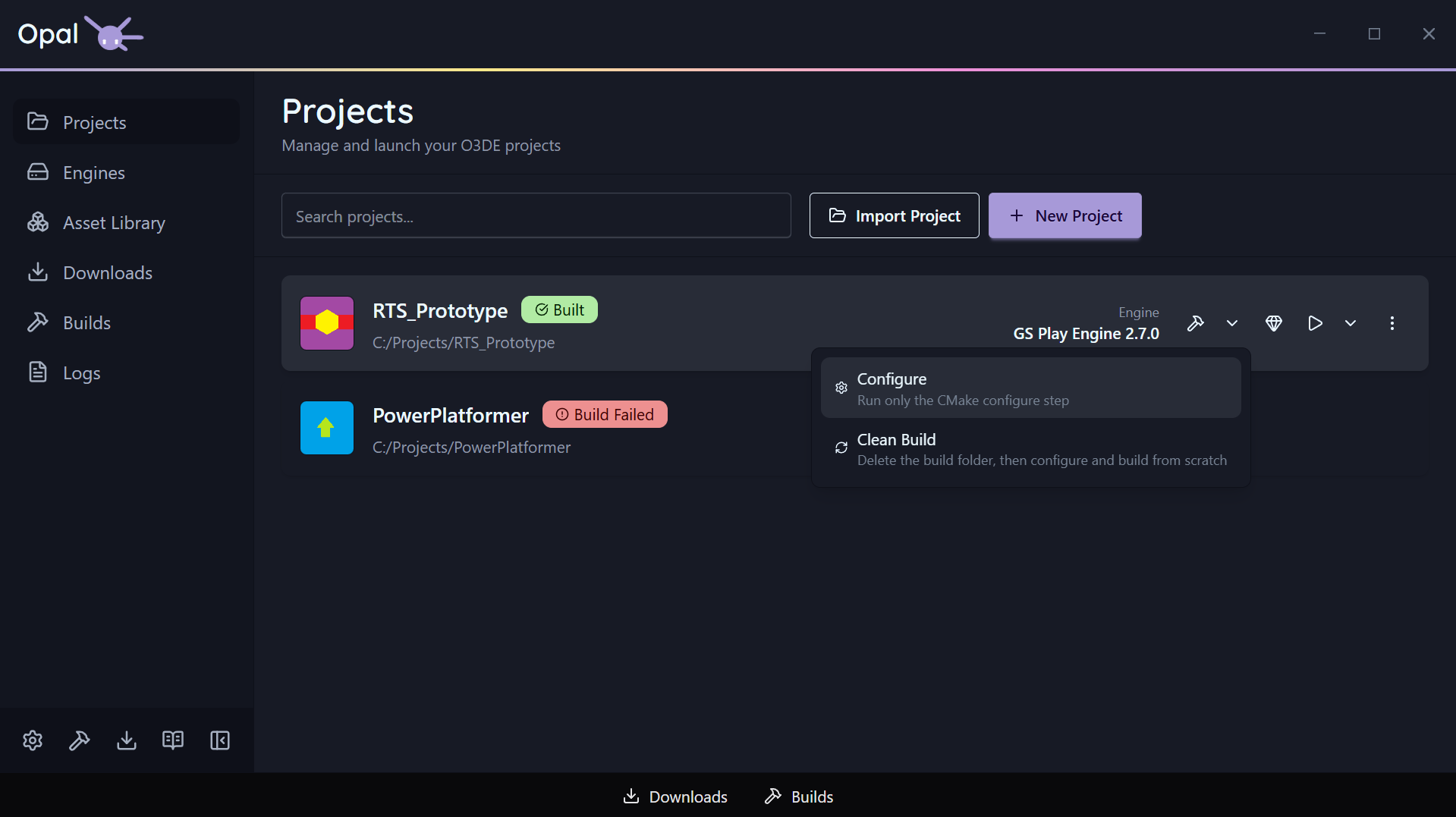
Build is a split button. The button itself runs the standard build; the dropdown beside it opens two alternate modes for when the default isn’t what you want.
| Mode | What it runs | Use it when |
|---|---|---|
| Build (default) | CMake configure, then compile | The everyday case |
| Configure | The CMake configure step only — stops before compiling | You changed gems, targets, or the build tool and want to regenerate the project without waiting for a full compile |
| Clean Build | Deletes the platform build folder, then configures and compiles from scratch | The build folder is stale or corrupt, or you’re switching generators and want nothing carried over |
Each mode is a normal queue item — same progress, same log, same cancel.
Configure finishes on its own Configured status rather than reporting a successful build, so a configure is never mistaken for something you can launch. See Status & health.
Clean Build wipes the build folder before anything else runs, so configure starts from nothing rather than a stale or partial cache. It is the slow option by design — expect a first-build-length wait.
Run the Asset Processor
Each project has a dedicated Run Asset Processor action. It’s disabled until the project’s engine is resolved (OPAL needs to know which engine’s Asset Processor to run). Its output goes to the Logs viewer like everything else.
Launch and stop
Click Launch to open the O3DE Editor for the project. The card reflects real run states as it goes:
- Launching — the Editor is starting.
- Processing Assets — assets are being processed before the Editor is ready.
- Running — the Editor is open.
While a project is running, a Stop control replaces the quick actions so you can shut it down from OPAL.
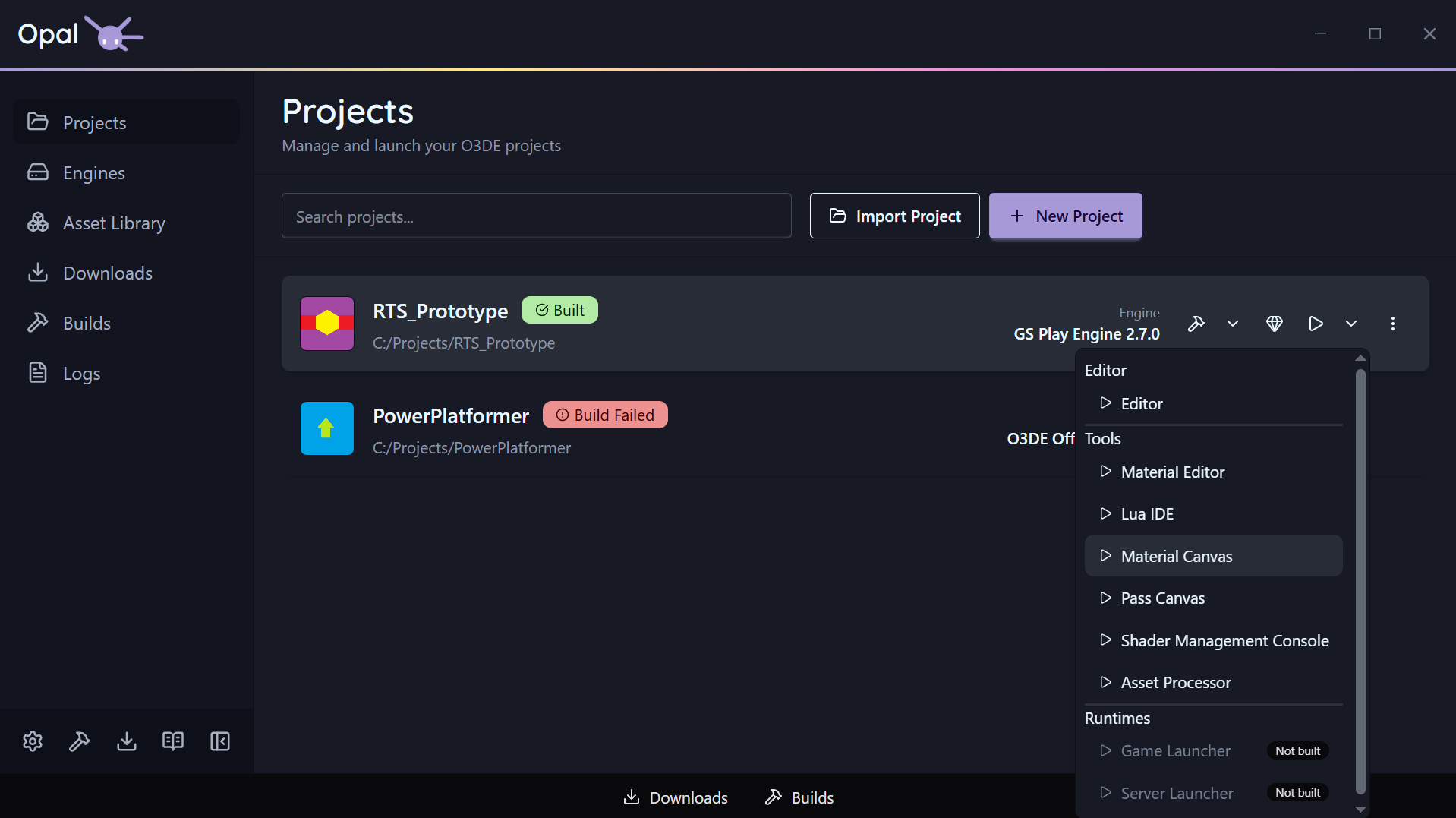
Launch is a split button too: the dropdown lists every application OPAL found for the project, grouped into Editor, Tools, and Runtimes, each with its own launch / stop control and an Unavailable badge where the binary isn’t built. OPAL looks for those binaries in the project’s configured build type.
Any launch arguments you set in Project settings are appended to the Editor’s command line — tools and runtimes launch without them.
See also
- Project settings
- Status & health
- Export - package a release build
- Builds queue
- Logs