Repositories & Sources
The Asset Library is only as good as the gems it can see. OPAL lets you add gems from several kinds of source, all managed from the Asset Library’s Add menu.
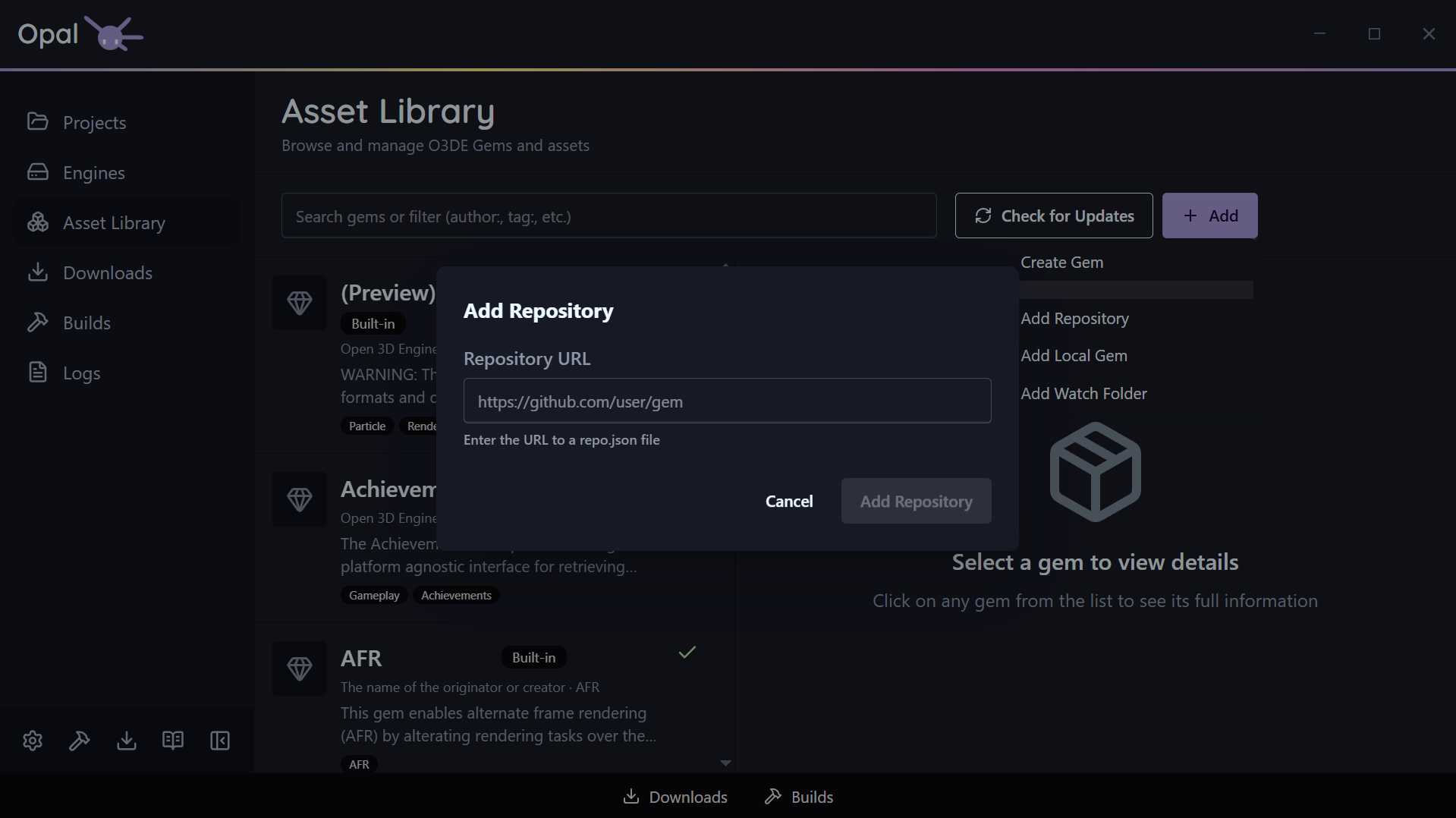
Ways to add gems
- Add Repository — point OPAL at a gem repository URL (it must end in
.json). OPAL indexes it and folds its gems into the library. - Add Local Gem — select a local gem folder to register a gem that lives on your machine.
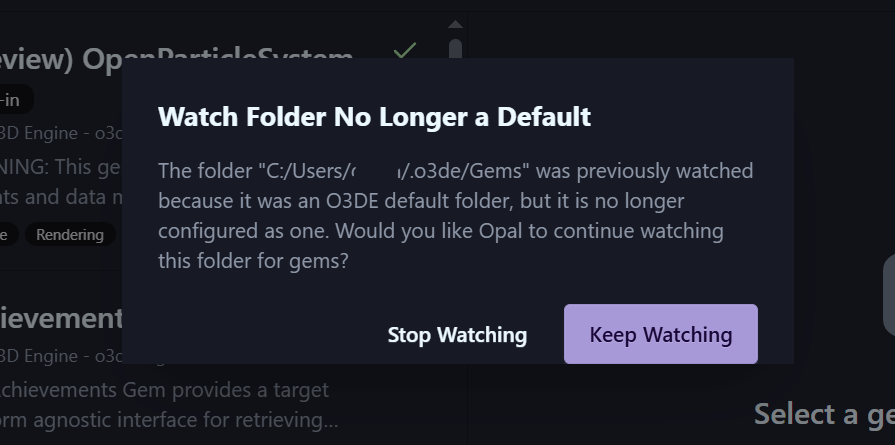
- Add Watch Folder — choose a folder that OPAL watches and auto-syncs gems from as they appear. If a watched folder later goes missing, OPAL prompts you to keep or stop watching it.
- Create Gem — scaffold a brand-new gem from within OPAL.
Caching & refresh
OPAL caches indexed repositories and scans your installed gems on startup, so browsing works offline and stays fast. It refreshes automatically when the cache is stale and you’re online, and a Check for Updates / Refresh button forces a refresh on demand. The automatic refresh interval is configurable in Asset Library settings.

Source downloads & credentials
When you download a gem’s source, OPAL uses git clone or an archive download automatically. You can prefer git globally via the useGitForSourceDownload setting; when git isn’t available or is disabled, OPAL falls back to the HTTP archive method.
If a source needs authentication, a Git credential prompt handles it — labeling the clone versus LFS-fetch stages distinctly so you know what’s being requested.
Warnings
Opal will notify you if things change around your watched folders and remote sources, ensuring you have awareness and control of how it will handle those changes.
Release notes
For gems hosted on GitHub, GitLab, or Bitbucket, OPAL fetches release notes automatically (shown in the inspector’s Releases tab). The provider is detected from the gem’s metadata URLs, and the provider system is extensible for additional hosts.