Settings
Every configurable option in OPAL, grouped by category.
OPAL’s settings are grouped into tabs. Open them from the gear in the Quick Access Bar at the bottom of the sidebar. The defaults are chosen so most people never need to touch them.

Settings are stored in OPAL’s own config, except where a tab reads and writes the O3DE manifest directly (the O3DE tab).
In this section
- Application — Appearance, language, window behaviour, startup, downloads, and notifications.
- Build Tools — CMake and build-system detection, selected build tool, CMake flags, and thread count.
- O3DE — The O3DE manifest’s default folders, plus OPAL’s engine download location.
- Asset Library — How often the gem cache refreshes automatically.
- Script-Only mode — Restrict OPAL to prebuilt, script-based work.
1 - Application
Appearance, language, window behaviour, startup, downloads, and notifications.
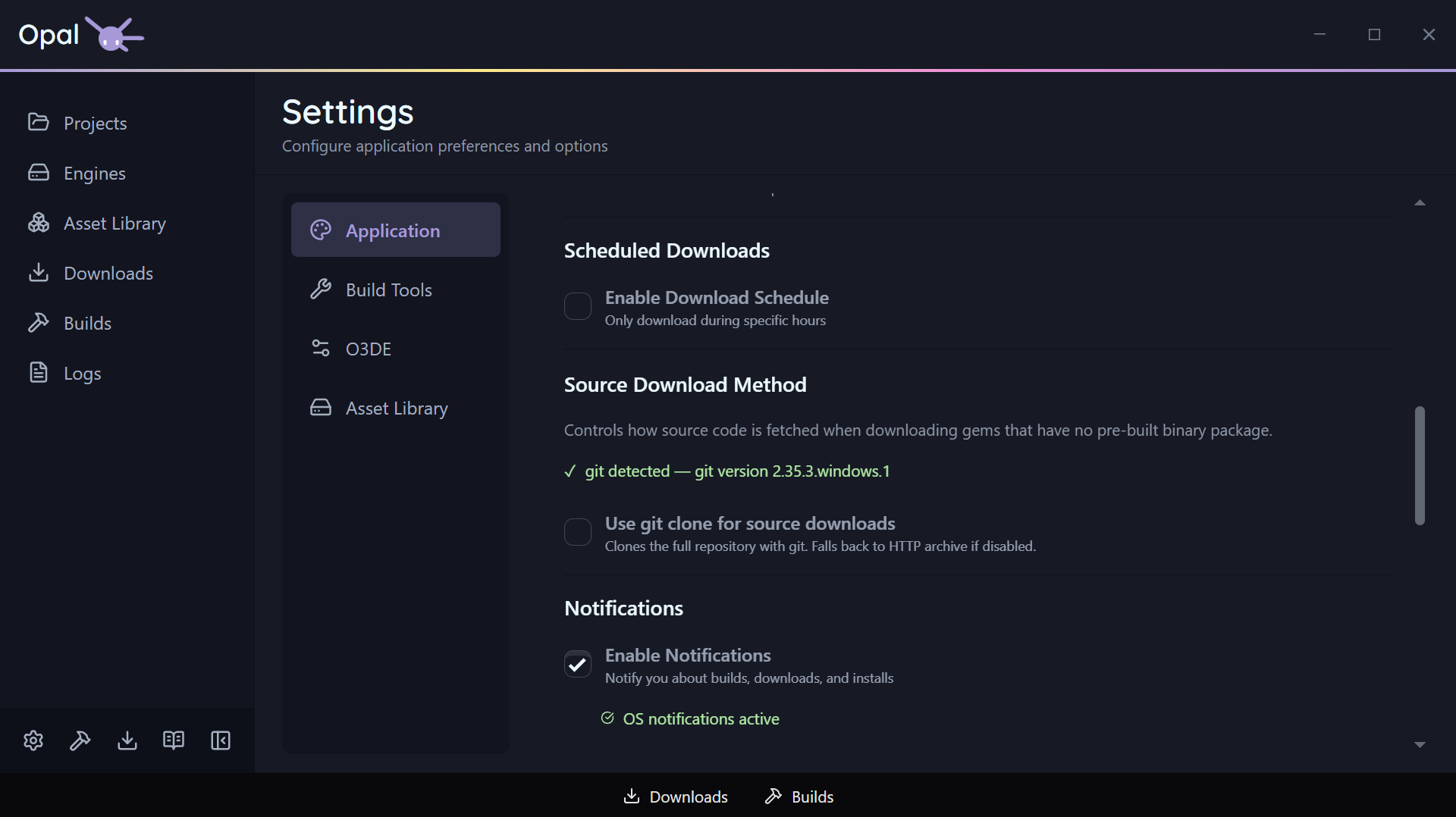
The Application tab holds OPAL’s general preferences plus the embedded Download and Notification settings.
Appearance & language
| Setting | Default | Notes |
|---|
| Theme | Auto | Light / Dark / Auto — Auto follows your OS prefers-color-scheme |
| Language | Auto | Auto detects from your OS locale; registered languages selectable |
Window behaviour & startup
| Setting | Default | Notes |
|---|
| Minimize on close | Off | Closing minimizes to tray instead of exiting |
| Minimize to tray | Off | Minimize to the system tray on startup |
| Open on startup | Off | Launch OPAL when you log in |
There’s also a Rerun Setup Wizard button here to re-launch the onboarding wizard on demand.
Download settings
| Setting | Default | Notes |
|---|
| Max concurrent downloads | 3 | 0 = unlimited |
| Max connections per download | 3 | Up to 16 |
| Throttle download speed | Off | |
| Speed limit | 10 | Value paired with the unit below |
| Speed unit | Mb/s | Mb/s or Kb/s |
| Schedule downloads | Off | Restrict downloads to a time window |
| Schedule window | 00:00–23:59 | HH:mm; windows crossing midnight are handled |
See Downloads for how these behave in the queue.
Notification settings
Native OS notifications, controlled per severity. A master switch turns all of them off at once.
| Setting | Default |
|---|
| Notifications enabled (master) | On |
| Warnings | On |
| Errors | On |
| Successes | On |
| Status info (lifecycle events) | Off |
| Debug (progress/internal, throttled) | Off |
Analytics
One checkbox: Share anonymous usage statistics. It is off by default and stays off unless you tick it — OPAL asks once in the onboarding wizard, and this is where you change that answer afterwards, in either direction.
| Setting | Default |
|---|
| Share anonymous usage statistics | Off |
A Learn more button opens the same plain-language notice the wizard shows. Nothing is collected that identifies you, nothing is shared with anyone else, and while the setting is off the tracker isn’t loaded at all. Full detail on the Privacy page.
See also
2 - Build Tools
CMake and build-system detection, selected build tool, CMake flags, and thread count.
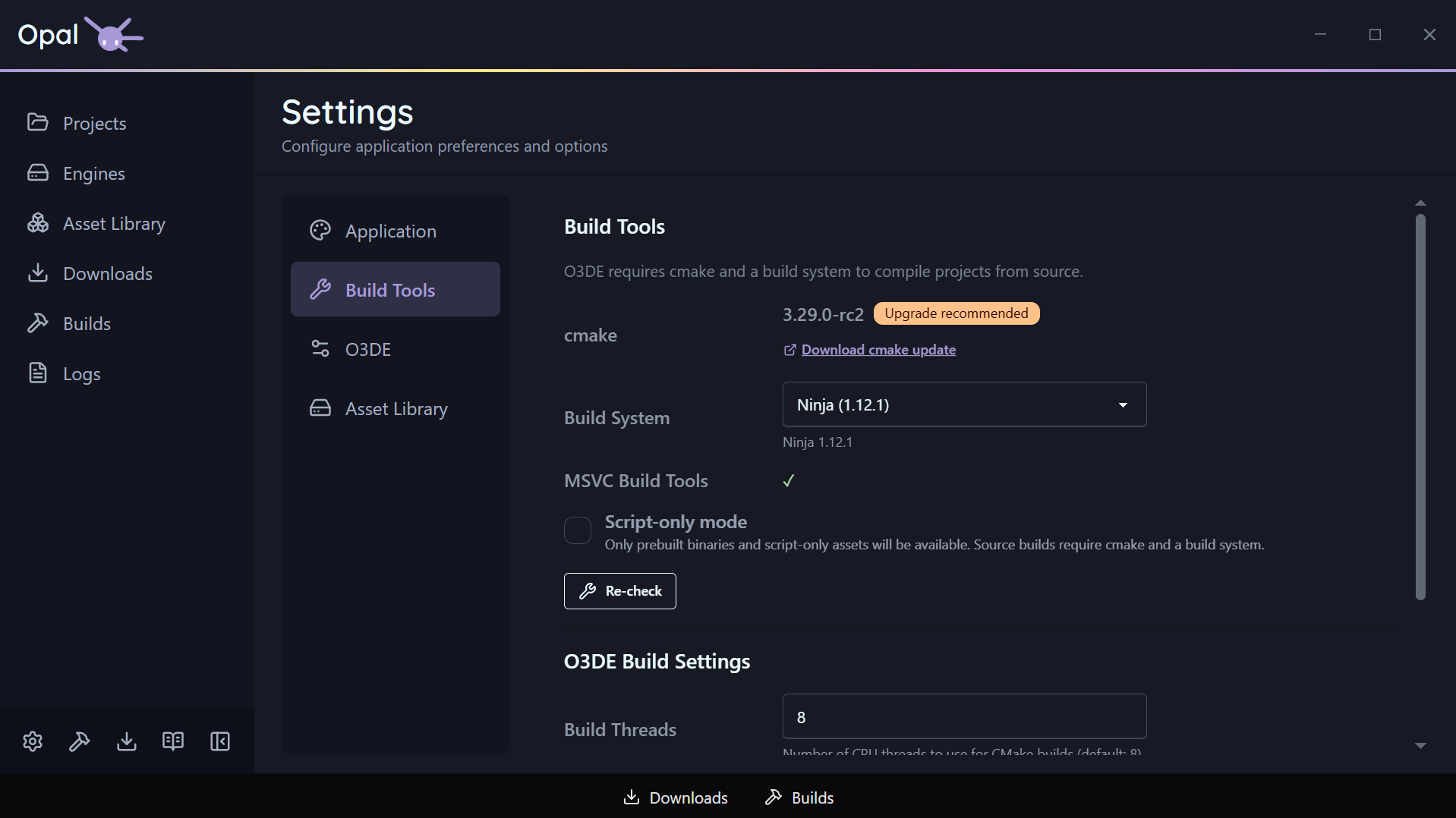
The Build Tools tab is where OPAL shows what it detected on your machine and lets you steer how builds run. A Recheck button re-runs detection at any time.
Detection
- CMake — OPAL reports the detected CMake and its version, and flags an out-of-date one with an upgrade recommendation and a link.
- Build systems — OPAL auto-detects the available build systems: Ninja, Xcode, and Visual Studio 2019 / 2022 / 2025 / 2026, as applicable to your platform.
Configuration
| Setting | Default | Notes |
|---|
| Selected build tool | Auto | The build system used after CMake configures; auto picks a sensible default |
| CMake flags | (none) | Extra space-separated arguments appended to the CMake configure for all projects |
| Build thread count | 8 | CPU threads for CMake builds; 0 = auto-detect |
Global, with a per-project escape hatch
These are
global settings. An individual project can override the build tool in its own
Project Settings; CMake flags and thread count remain global.
See also
3 - O3DE
The O3DE manifest’s default folders, plus OPAL’s engine download location.
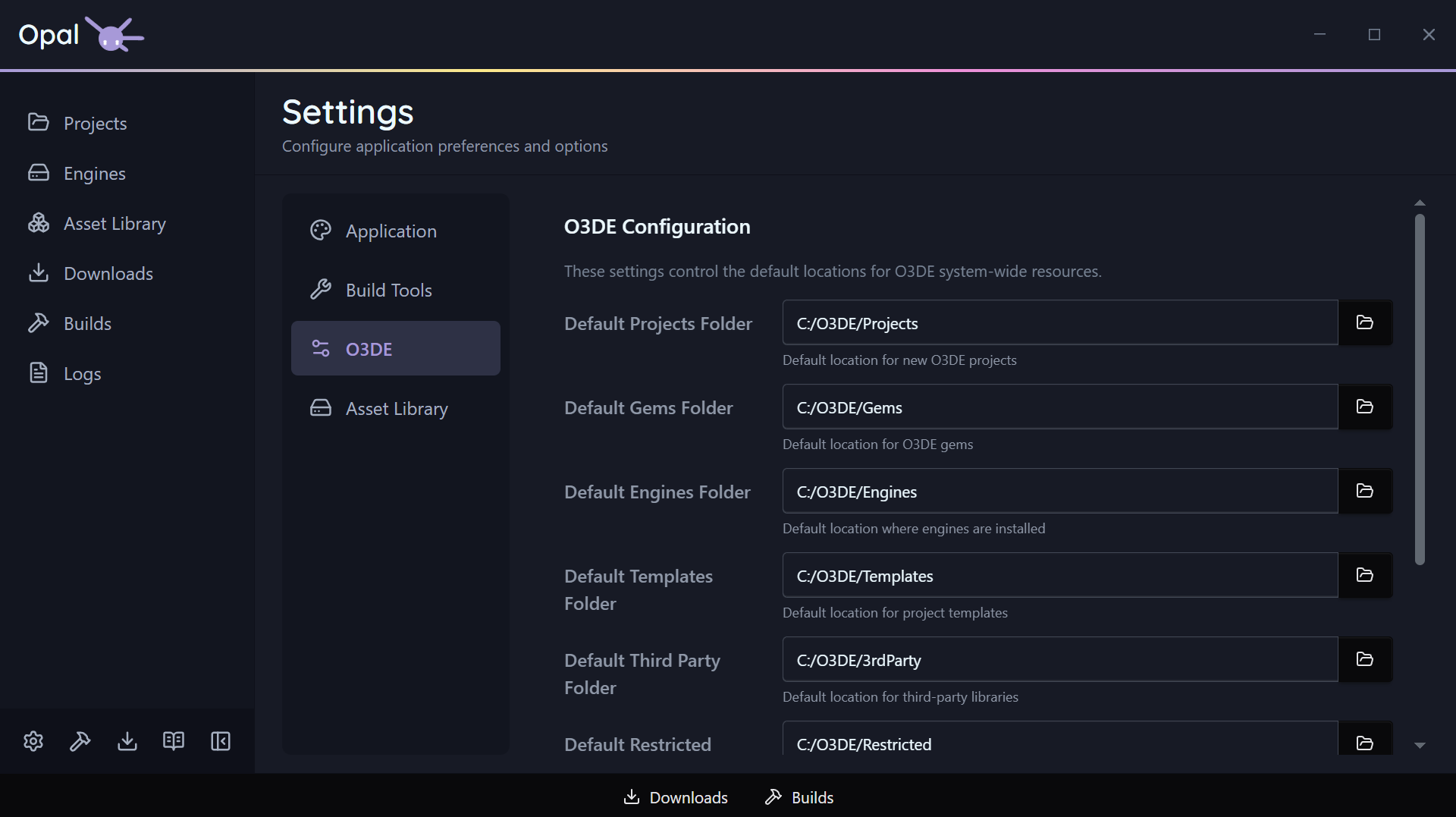
The O3DE tab reads and writes your O3DE manifest (o3de_manifest.json) directly. These aren’t OPAL-private settings — they’re the same defaults the O3DE tooling uses, so changes here are visible to the engine and the stock tools too.
Manifest default folders
Each of these has a folder picker:
| Setting | What it is |
|---|
| Default projects folder | Where new projects are created by default |
| Default gems folder | Where gems are placed by default |
| Default templates folder | Where project/gem templates are looked up |
| Default third-party folder | O3DE’s third-party package location |
Engine download location
| Setting | Default | Notes |
|---|
| Engine download path | (manifest default) | Where engine installer files are saved during download, before install. When empty, OPAL uses the manifest’s default engines folder |
Point this at a fast or roomy drive if you download a lot of engines.
See also
4 - Asset Library
How often the gem cache refreshes automatically.
The Asset Library tab controls how often OPAL refreshes its cache of indexed gem repositories in the background.
| Setting | Default | Notes |
|---|
| Cache refresh interval | 1 | A number, paired with the unit below |
| Interval unit | Day | Minute / Hour / Day |
Short intervals need confirmation
Setting the interval below one hour triggers a confirmation warning — frequent refreshes hit your repositories harder and rarely help. Confirm only if you really want it.You can always force an immediate refresh from the Asset Library’s Check for Updates button, independent of this schedule. See Repositories & sources.
See also
5 - Script-Only Mode
Restrict OPAL to prebuilt, script-based work.
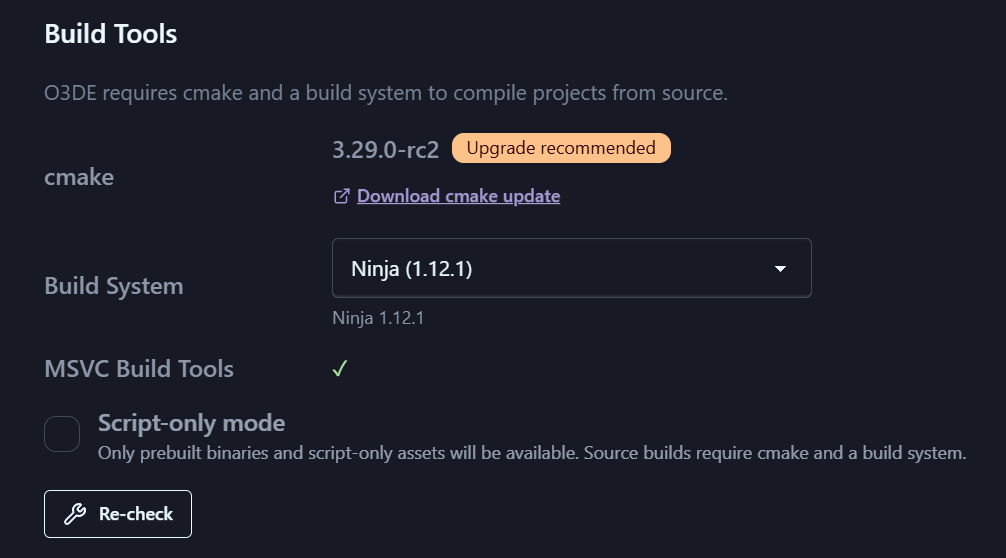
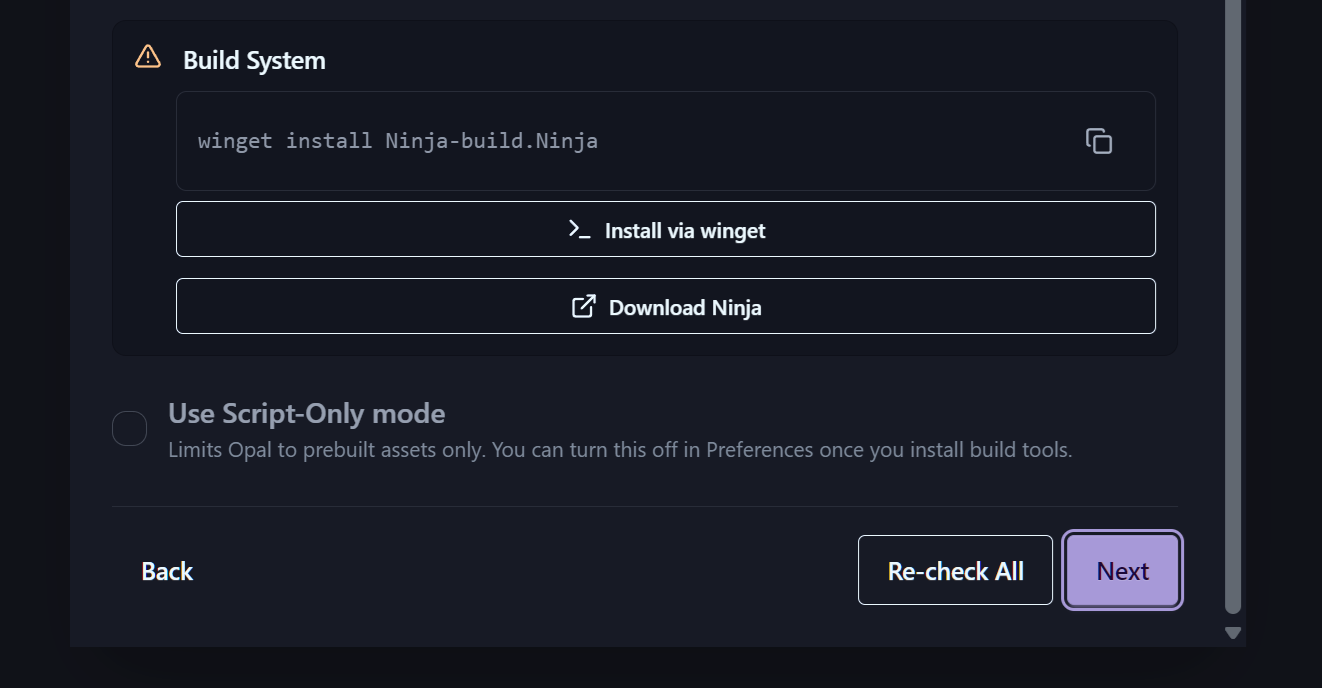
Script-Only mode is a global toggle for people who aren’t compiling C++. When it’s on, OPAL keeps the interface focused on prebuilt engines and script-based work, and hides everything to do with building from source.
You can turn it on during the onboarding wizard or any time from Settings.
What it changes
While Script-Only mode is on:
- The Source platform filter is hidden on the Engine Downloads page.
- Build actions on source engines are hidden.
- Unbuilt source engines are marked unavailable, with a note explaining why.
- Source-related options are hidden in project gem configuration.
Turn it off again and all the source-build tooling comes back.
See also