Queues
Download and build queue controls — pause/resume, reorder, parallelism, speed limits, and schedules.
OPAL runs long operations through two queues: one for downloads (engines, gems, assets) and one for builds (engine source builds, project builds). They share a common look and feel — add, pause, resume, reorder, cancel — and both surface live status in the status bar at the bottom of the window.
The queues are built to survive interruption: close OPAL mid-operation and reopen later, and the queue is intact.
In this section
- Downloads — Pause/resume, reorder, cap concurrency, throttle bandwidth, and schedule download windows.
- Builds — Queue, pause/resume, cancel, reorder, and view build logs.
- Status bar — The bottom-bar widgets and drawers that show queues at a glance.
1 - Downloads
Pause/resume, reorder, cap concurrency, throttle bandwidth, and schedule download windows.
The Downloads queue handles engine installers, gems, and other assets. Each item shows its progress; a backend download manager does the actual work, so pausing, resuming, and resuming-after-a-crash all behave properly rather than silently restarting.
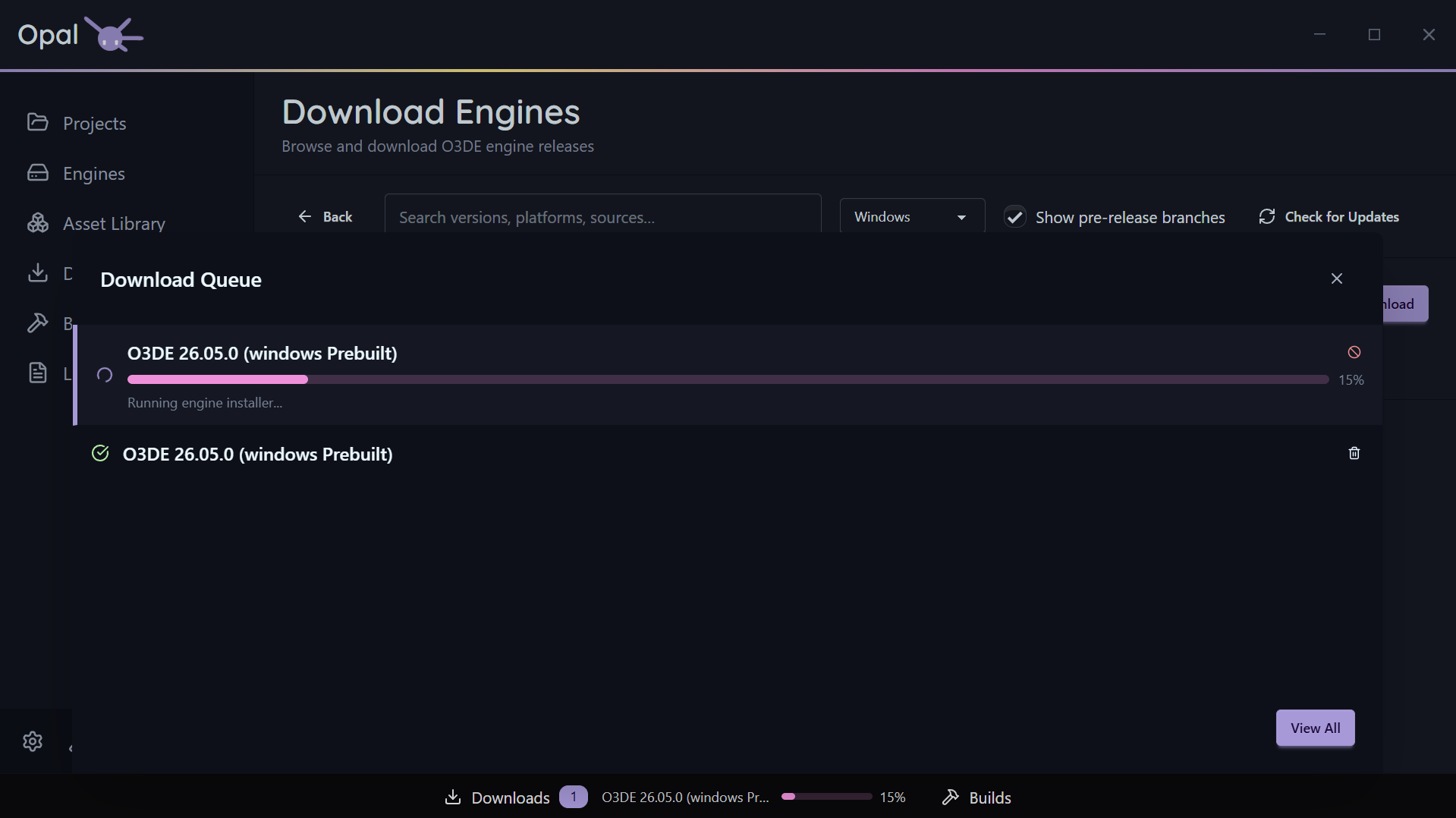
Per-item controls
- Pause / Resume an individual download.
- Cancel a download.
- Move to Top or drag to reorder the queue. OPAL is careful here: if a non-pausable active item is dragged down it snaps back, and if “move to top” has no pausable item to demote, OPAL tells you rather than doing nothing.
- Cancel & Requeue — offered for a non-pausable download that’s still running past a scheduled window’s close.
Whole-queue controls
- Pause All / Resume All toggles the entire download queue.
- Clear Completed clears finished items from the list.
Concurrency
Set how much runs at once in Settings:
- Max concurrent downloads — how many downloads run simultaneously (default 3; 0 = unlimited).
- Max connections per download — parallel connections for a single download (default 3, up to 16).
Speed limits
Enable a global download throttle and set the limit with a unit (Mb/s or Kb/s). Off by default — turn it on when OPAL is competing with a call or a metered connection.
Scheduled windows
Restrict downloads to a time window (for example 22:00–07:00). When the window closes, OPAL pauses the queue; when it opens, OPAL resumes automatically. Windows that cross midnight are handled correctly. Configure the window in Settings.
Credentials
If a download needs git authentication (for a gem source clone or LFS fetch), a secure credential prompt handles it. See Repositories & sources.
See also
2 - Builds
Queue, pause/resume, cancel, reorder, and view build logs.
The Builds queue handles engine source builds, project builds, and project exports — one queue and one concurrency pool, because all three drive the same CMake toolchain and would otherwise contend for it. Like downloads, each build shows progress and can be managed while it runs — and its output is always a click away in the log viewer.
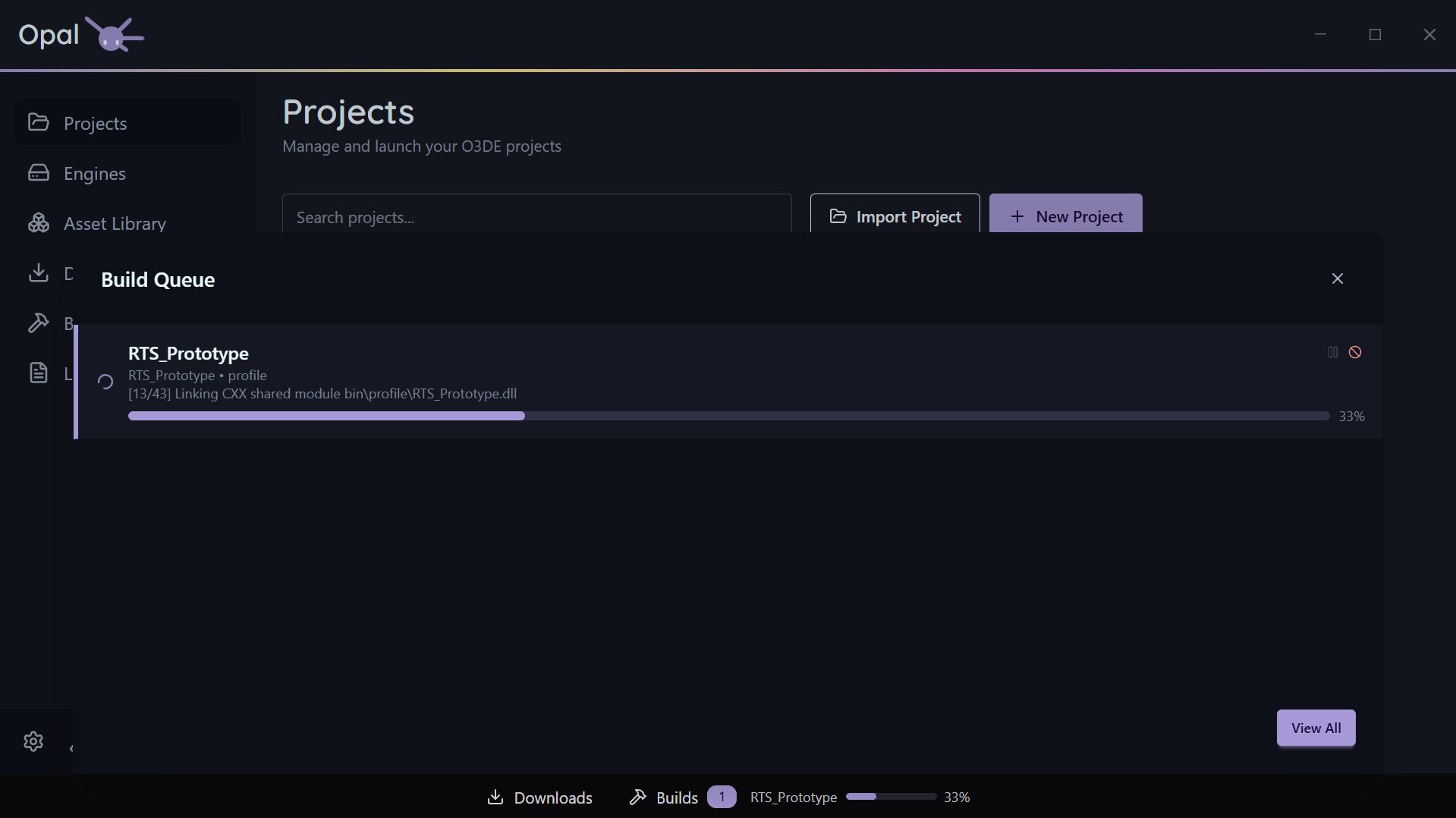
As seen in the above screenshot, using the Windows optional Ninja Builder will grant granular progress reporting. Default MS Build will not.
To install it, re-run the Setup Wizard from Settings > Application, at the bottom of the window.
Build modes
A project build enters the queue in one of three modes — Build, Configure, or Clean Build — chosen from the split build button on the project card. They behave identically in the queue; only the work differs. See Build modes.
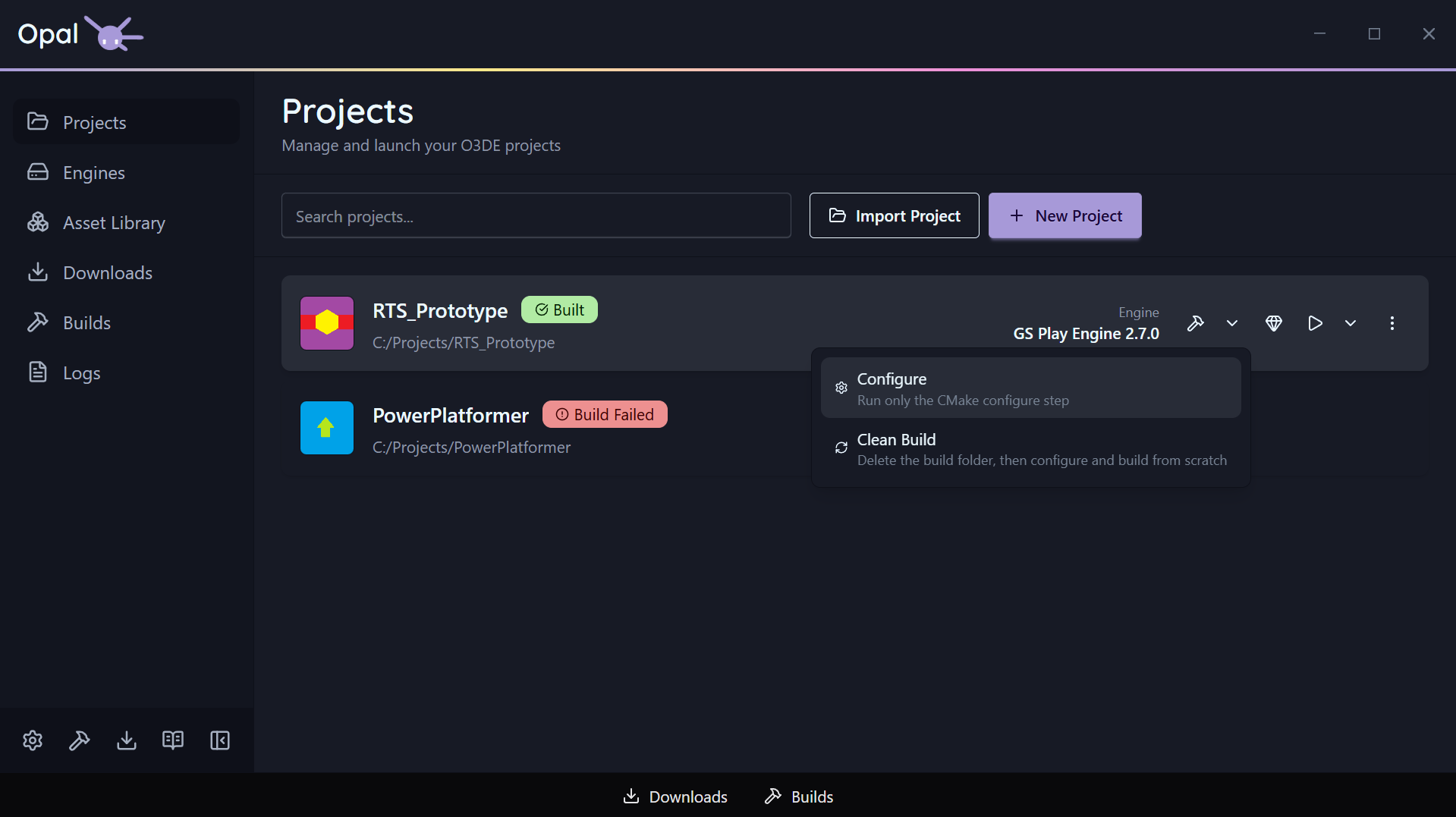
Per-item controls
- Pause / Resume an individual build. The pause checkpoint sits between the configure and compile stages, so a build stops being pausable once CMake has finished configuring and the compiler is running. A Configure-only build finishes at that same point.
- Cancel a build. Cancelling also stops the child build processes it spawned, so nothing is left running in the background.
- Move to Top or drag to reorder, with the same smart demote / no-victim notifications as the downloads queue.
- View Log streams the build’s output into the shared Logs viewer.
Whole-queue controls
- Clear Completed clears finished builds from the list.
Concurrency
Set max concurrent builds in Settings (default 1). O3DE builds are memory-hungry, so 1 is a sensible default on a laptop; workstations can run more. Build parallelism (thread count) is set separately in Build Tools settings.
See also
3 - Status Bar
The bottom-bar widgets and drawers that show queues at a glance.
The status bar runs along the bottom of the OPAL window. It’s driven by a widget registry, so it shows compact, live indicators for background work without you needing to open a full page.
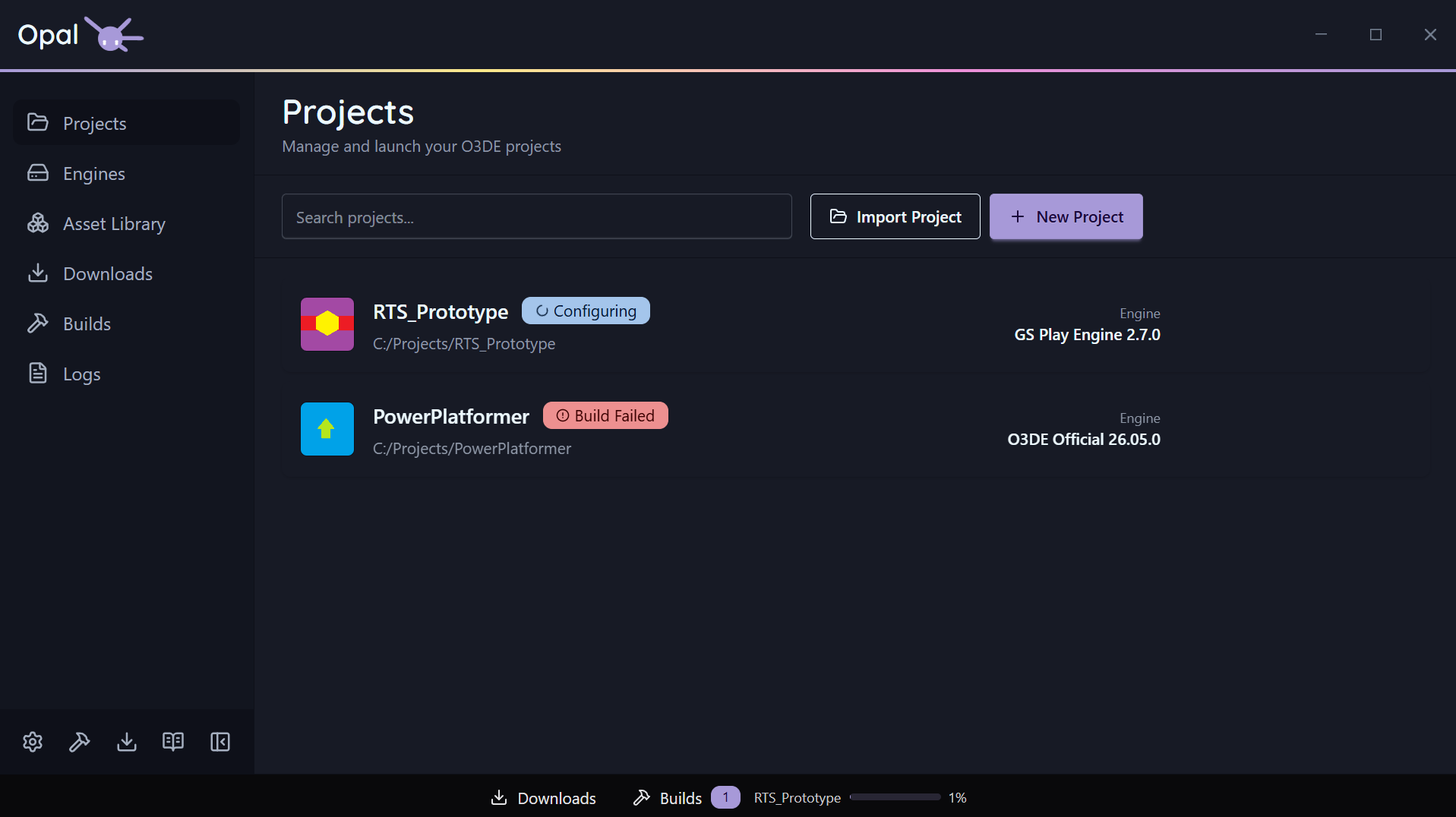
Out of the box the status bar carries Downloads and Builds widgets. A widget can show an icon, label, count, and a progress bar, and can be aligned to the left, centre, or right of the bar. The default queue widgets are centre-aligned.
Drawers
Click a queue widget to open a drawer that slides up from the bottom, showing the live queue for that widget without leaving the page you’re on. From the drawer, a button jumps to the full Downloads or Builds page when you want the complete view and controls.
See also