Projects
Create, import, build, run, and export O3DE projects, with status-aware cards and missing-engine recovery.
The Projects page is the landing view of OPAL. Every project you’ve created or imported lives here, each on a card that shows its state at a glance and offers the actions available right now. Search filters the list by display name, name, or path.
This is where the whole pipeline runs from — create, build, run, debug, and export — without dropping to a command line.
In this section
- Create & import — Make a new project from a template, or bring in an existing one.
- Build & run — Build, run the Asset Processor, launch the Editor, and follow live run states.
- Status & health — What each status badge means, and how OPAL guides you through a missing engine.
- Project settings — Pin an engine, override the build tool, and pass launch arguments per project.
1 - Create & Import
Create a new O3DE project from a template, or import an existing one.
Every project in OPAL is a standard O3DE project — OPAL writes and reads the normal project.json manifest, so projects stay compatible with the O3DE Editor, the o3de CLI, and the stock Project Manager.
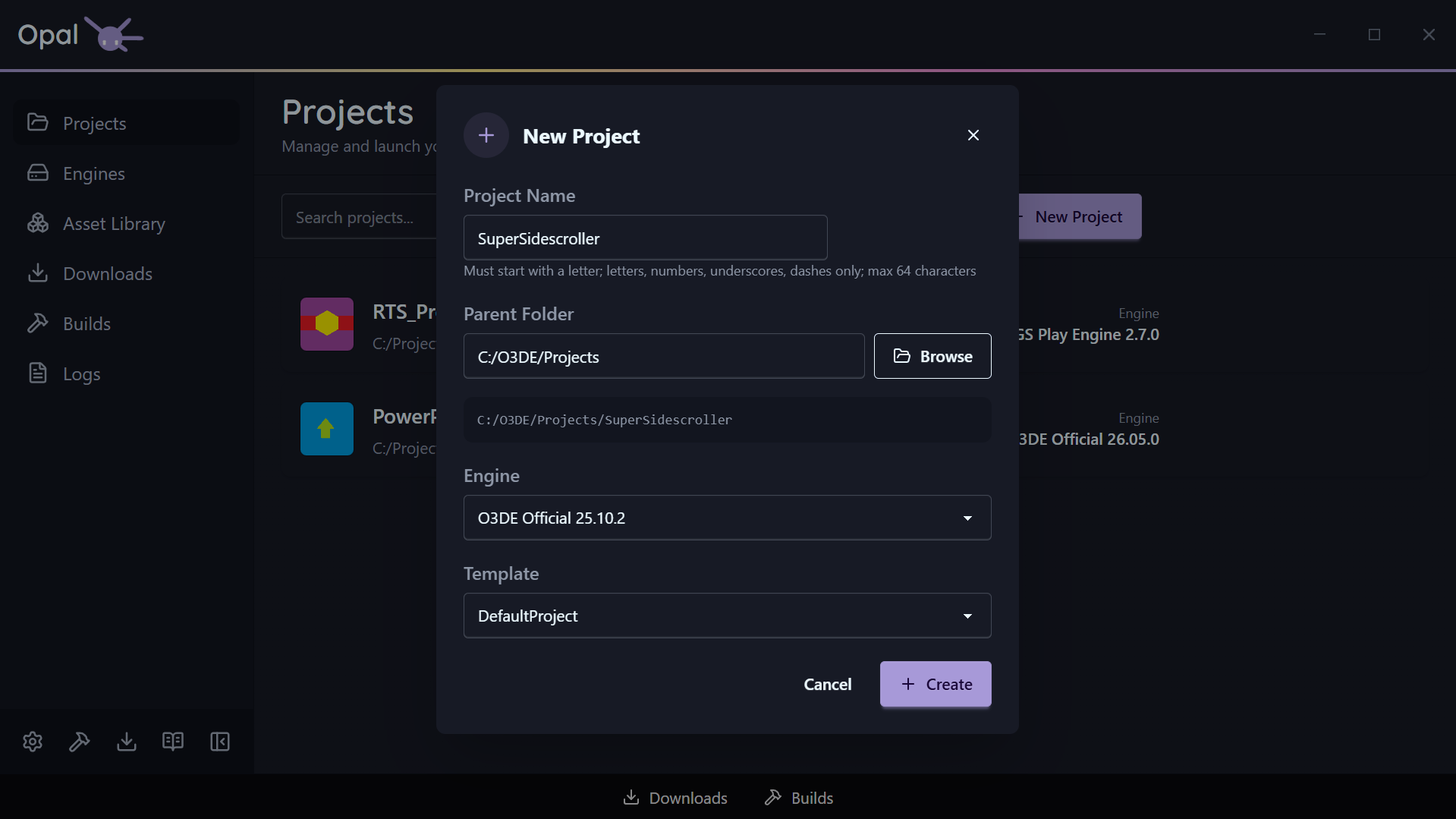
Create a new project
Click New Project and fill in the dialog:
- Name — validated as you type: it must start with a letter and contain only letters, numbers,
_, or -, up to 64 characters. - Location — the parent directory the project folder is created in.
- Engine — defaults to your default engine; choose any installed engine instead.
- Template — OPAL auto-selects
DefaultProject; pick a different template if you prefer.
Click Create. OPAL creates the project, writes project.json, registers it, and adds it to your list.
Import an existing project
Click Import and select a folder that contains a valid project.json. OPAL reads the manifest, resolves which engine the project expects, and adds it to your list without modifying the project. This works for projects created anywhere — including the stock O3DE Project Manager.
See also
2 - Build & Run
Build, configure, or clean-build a project, run the Asset Processor, launch the Editor, and follow live run states.
From a project card you drive the core loop: build the project, process its assets, launch the Editor, and stop it again — all with real-time feedback.
Build
Click Build to queue a build using the project’s configured build tool. The build runs through the Builds queue, where it can be paused, resumed, reordered, and cancelled. Its output streams into the Logs viewer, and a View Log shortcut sits right on the item.
The first build of a project takes a while — that’s O3DE compiling your project’s modules.
What gets built is governed by Project settings: the build type (Debug / Profile / Release) and the build targets list, plus the build tool and any global CMake flags and thread count.
Installed a New Dependency?
If you installed new tools from the Wizard, you may need to restart your computer to be able to build your projects successfully.Build modes
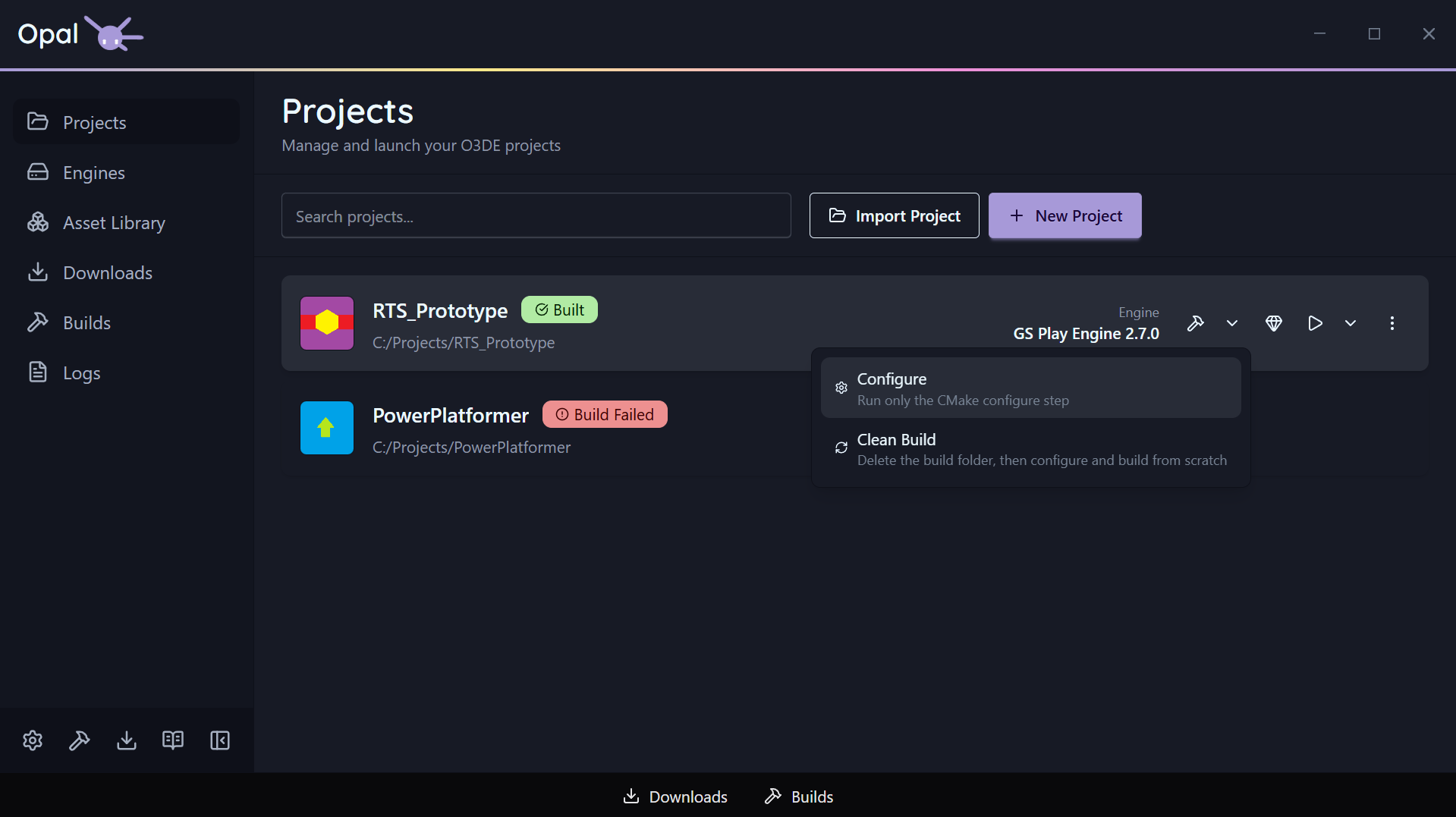
Build is a split button. The button itself runs the standard build; the dropdown beside it opens two alternate modes for when the default isn’t what you want.
| Mode | What it runs | Use it when |
|---|
| Build (default) | CMake configure, then compile | The everyday case |
| Configure | The CMake configure step only — stops before compiling | You changed gems, targets, or the build tool and want to regenerate the project without waiting for a full compile |
| Clean Build | Deletes the platform build folder, then configures and compiles from scratch | The build folder is stale or corrupt, or you’re switching generators and want nothing carried over |
Each mode is a normal queue item — same progress, same log, same cancel.
Configure finishes on its own Configured status rather than reporting a successful build, so a configure is never mistaken for something you can launch. See Status & health.
Clean Build wipes the build folder before anything else runs, so configure starts from nothing rather than a stale or partial cache. It is the slow option by design — expect a first-build-length wait.
Run the Asset Processor
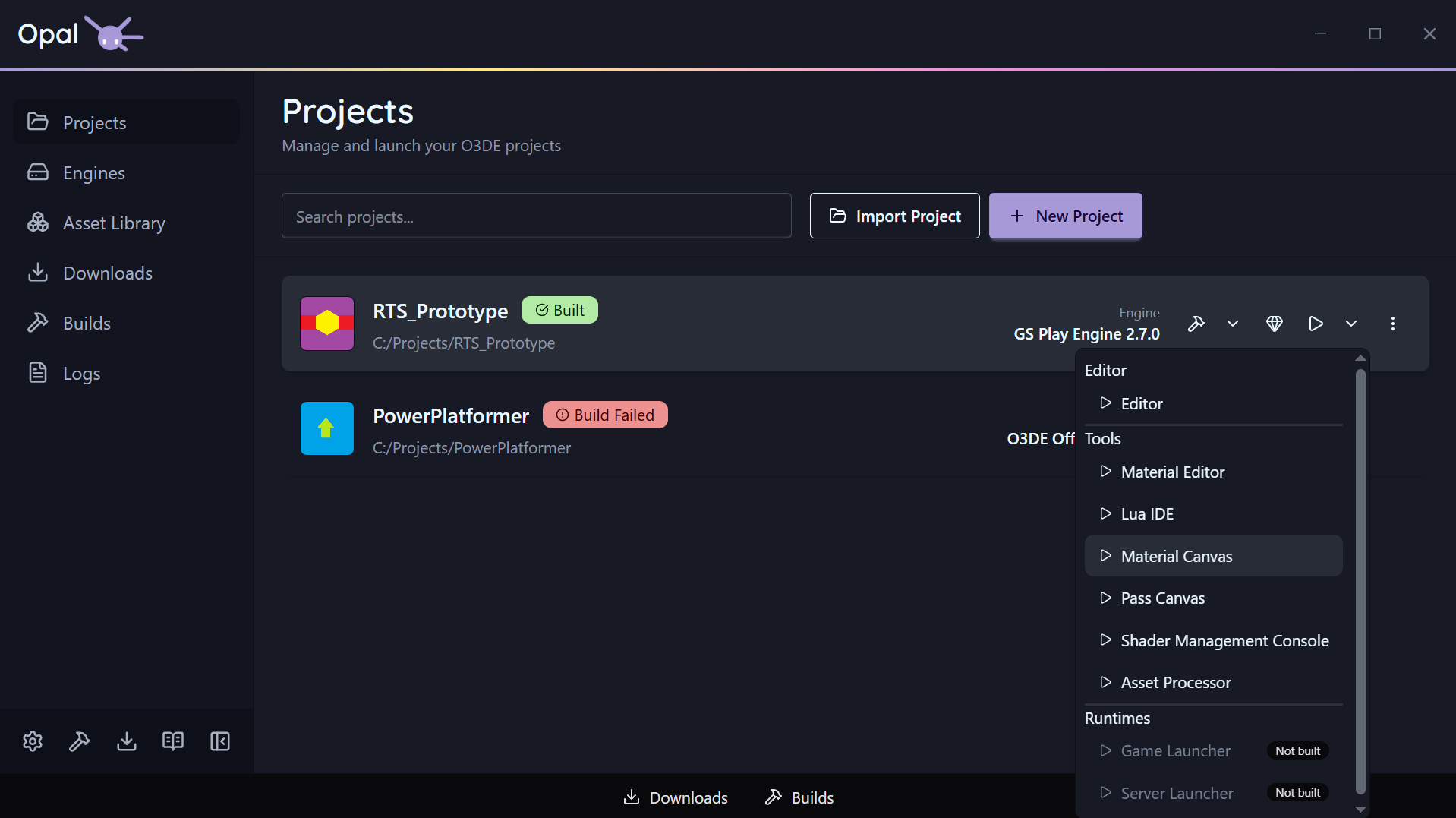
Each project has a dedicated Run Asset Processor action. It’s disabled until the project’s engine is resolved (OPAL needs to know which engine’s Asset Processor to run). Its output goes to the Logs viewer like everything else.
Launch and stop
Click Launch to open the O3DE Editor for the project. The card reflects real run states as it goes:
- Launching — the Editor is starting.
- Processing Assets — assets are being processed before the Editor is ready.
- Running — the Editor is open.
While a project is running, a Stop control replaces the quick actions so you can shut it down from OPAL.
Launch is a split button too: the dropdown lists every application OPAL found for the project, grouped into Editor, Tools, and Runtimes, each with its own launch / stop control and an Unavailable badge where the binary isn’t built. OPAL looks for those binaries in the project’s configured build type.
Any launch arguments you set in Project settings are appended to the Editor’s command line — tools and runtimes launch without them.
See also
3 - Status & Health
What each project status badge means, and how OPAL recovers a missing engine.
Every project card tells you its state without you having to open anything. There are two layers: the build status badge, and — when the project is running — a run state.
Build status badges
| Badge | Meaning |
|---|
| Not Built | The project exists but has never been built |
| Needs Build | The project has changed since its last successful build |
| Configuring | CMake is generating the project — the first stage of every build mode |
| Configured | A Configure run finished — the project is generated but not compiled |
| Building | A build is in progress |
| Built | The build is current — ready to launch |
| Build Failed | The last build errored — check Logs |
Every build passes through Configuring before it starts compiling. Configured is where a
Configure-only run comes to rest: the project is generated, but
there is nothing to launch yet, and the Launch button stays disabled until you build it.
Run states
While a project is launching or open, the card shows a run state instead: Launching, Processing Assets, or Running, with a Stop control to shut it down.
Missing-engine recovery
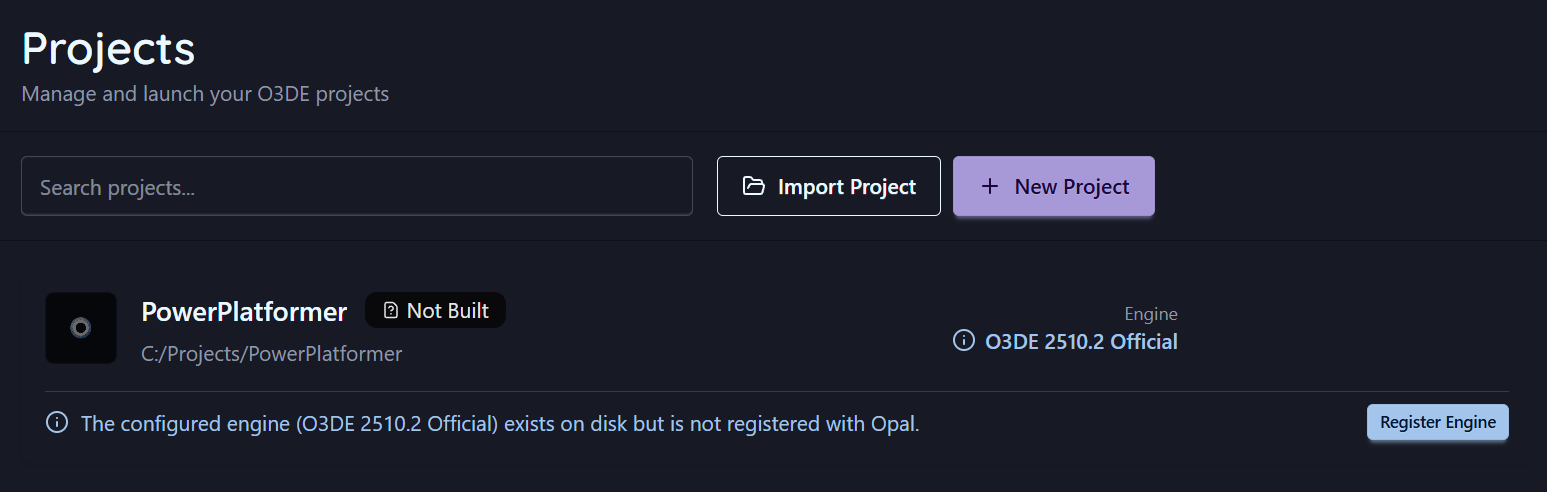
A project points at an engine. If OPAL can’t cleanly resolve that engine, it doesn’t just error — it identifies which of three situations you’re in and offers the matching fix inline on the card:
| Situation | What it means | Inline action |
|---|
| Engine not on disk | The referenced engine isn’t installed anywhere OPAL can find | Add Engine (go to Engines) |
| Engine present but unregistered | The engine folder exists on disk but isn’t registered with OPAL | Register Engine |
| Engine resolved loosely | Matched only by name/version, not an exact pinned path | Pin Engine |
Reassigning or reinstalling the engine clears the warning. See also Remove & prune for what happens to pinned projects when you remove an engine.
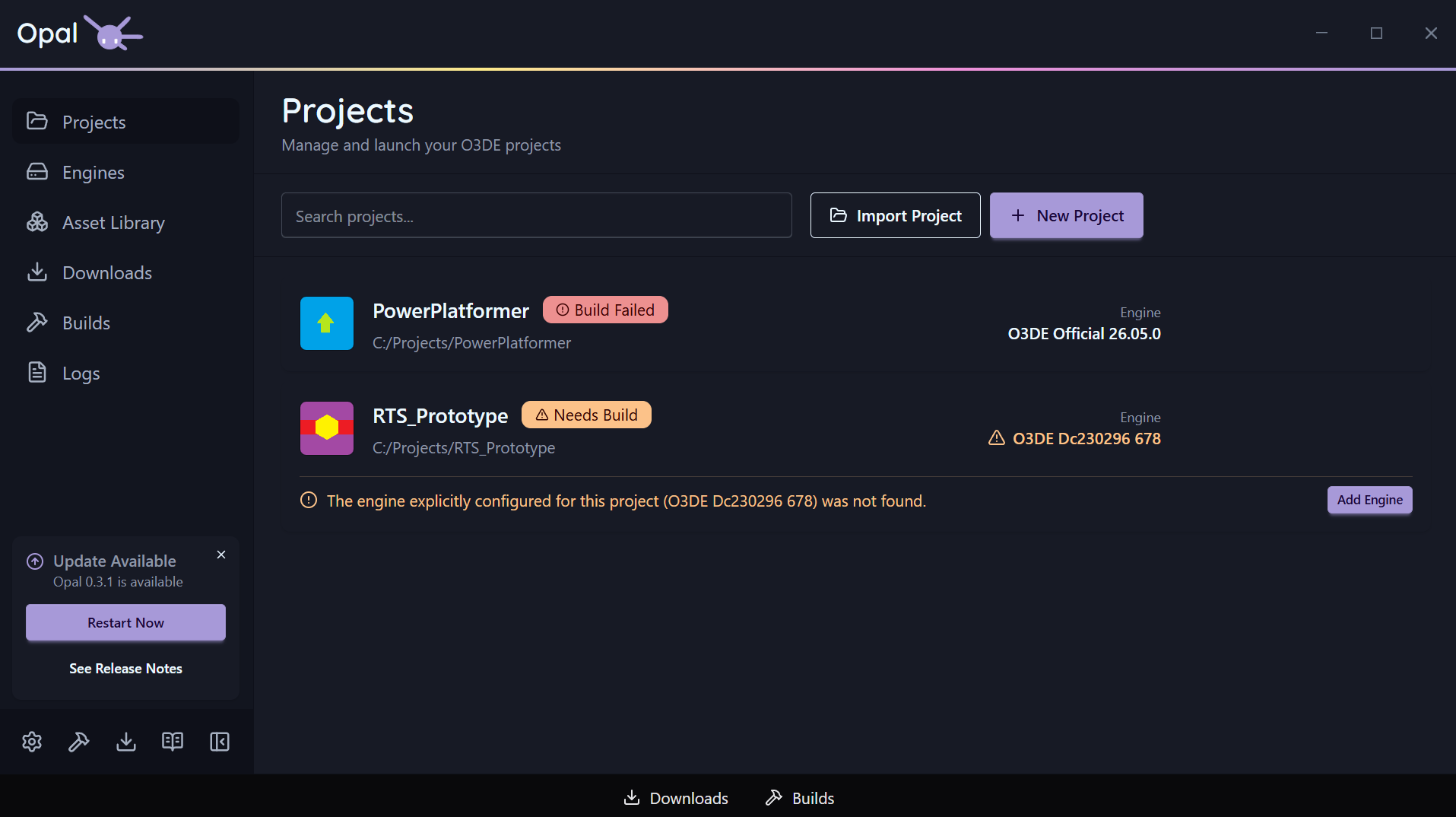
Missing-gem detection
OPAL also checks the gems a project references, including nested dependencies. If any can’t be found for the project’s engine, the card shows a missing gems banner, because configure will fail until they’re provided. The banner links into the gem configuration page, filtered to that project’s gems.
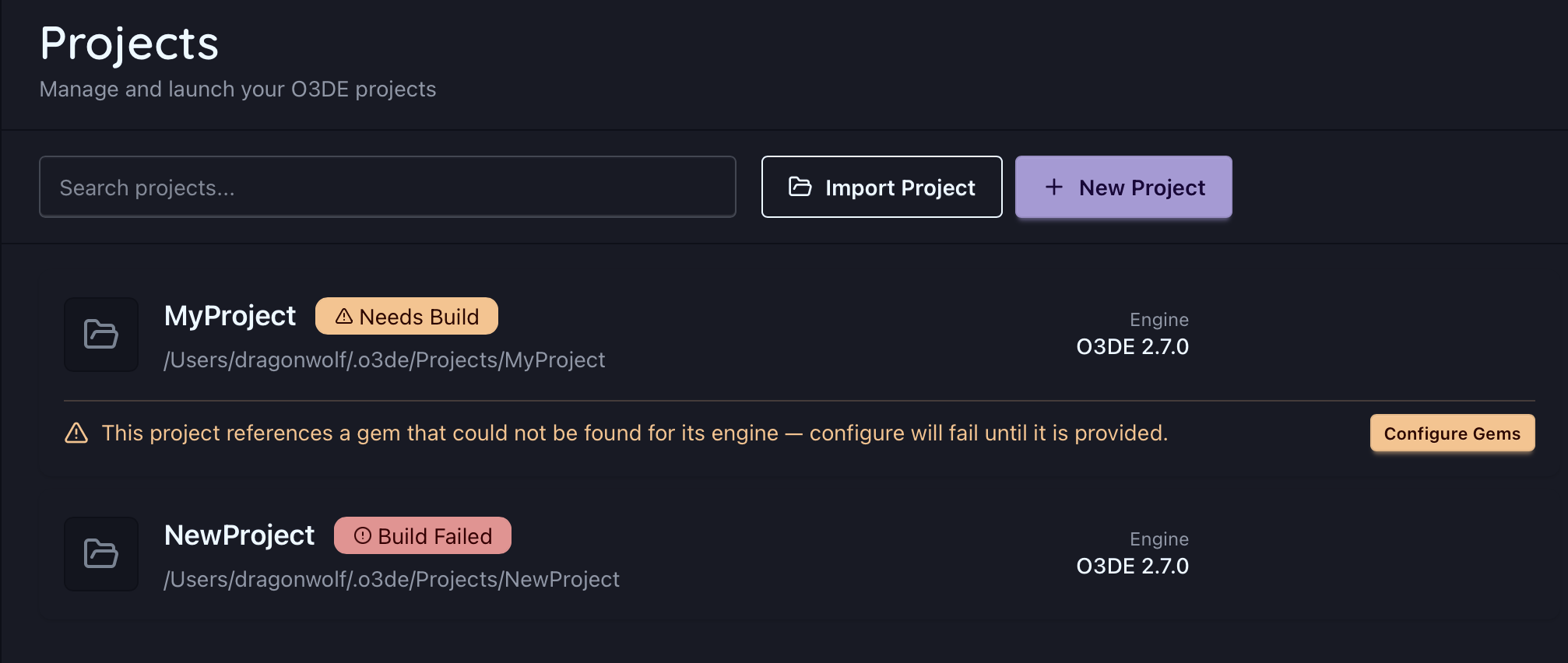
See Missing gems for how to register or download them.
See also
4 - Project Settings
Pin an engine, override the build type, tool, and targets, and pass launch arguments per project.
Most build behaviour is configured once, globally, in Settings. A few things, though, belong to the individual project — OPAL keeps those in per-project settings, keyed to the project’s path.
Open them from the project’s Settings action. Alongside the project.json fields (name, version, summary, icon, licence, repository, tags, gems), the dialog carries the advanced build and launch overrides below.
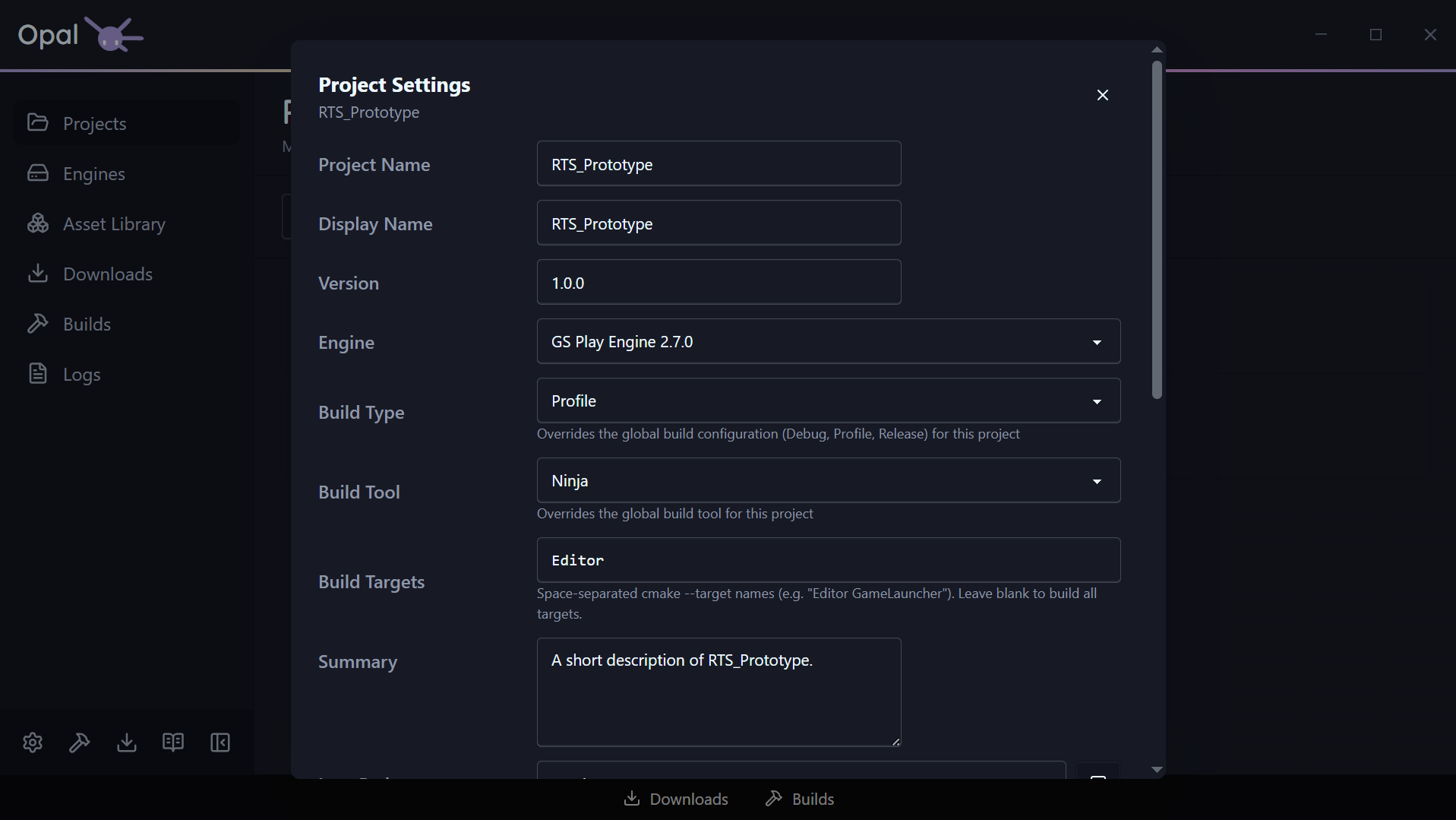
Engine pin
Each project resolves to an engine. From the project’s settings you can pin it to a specific installed engine (the same relationship the status & health page describes recovering when it breaks). If the pinned engine isn’t installed, the field warns you inline.
Build type
Choose the build configuration this project compiles and launches with: Debug, Profile, or Release.
Leave it on Use global setting and the project follows the global build configuration (Profile by default). Set it explicitly and this project alone is pinned to that configuration — useful when one project needs a Debug build for stepping through code while everything else stays on Profile.
The choice feeds both halves of the loop: it’s the configuration the build produces, and the configuration OPAL looks in when finding the Editor and other applications to launch.
Globally, OPAL uses one selected build tool (see Build Tools settings). A project can override that with its own build tool when it needs a different generator than your default — otherwise it inherits the global choice.
If the project’s existing build folder was configured with a different CMake generator than the one you’ve selected, OPAL says so right below the field. That’s a heads-up, not a block: the next build clears the cache and reconfigures with your selection.
Using the Windows optional Ninja Builder will grant granular progress reporting. Default MS Build will not.
To install it, re-run the Setup Wizard from Settings > Application, at the bottom of the window.
Build targets
By default a build compiles everything. Build targets narrows that to a specific list — space-separated cmake --target names, such as:
Leave the field blank to build all targets. Projects created through OPAL start with Editor, so a first build gets you into the Editor without compiling launchers you aren’t using yet.
Launch arguments
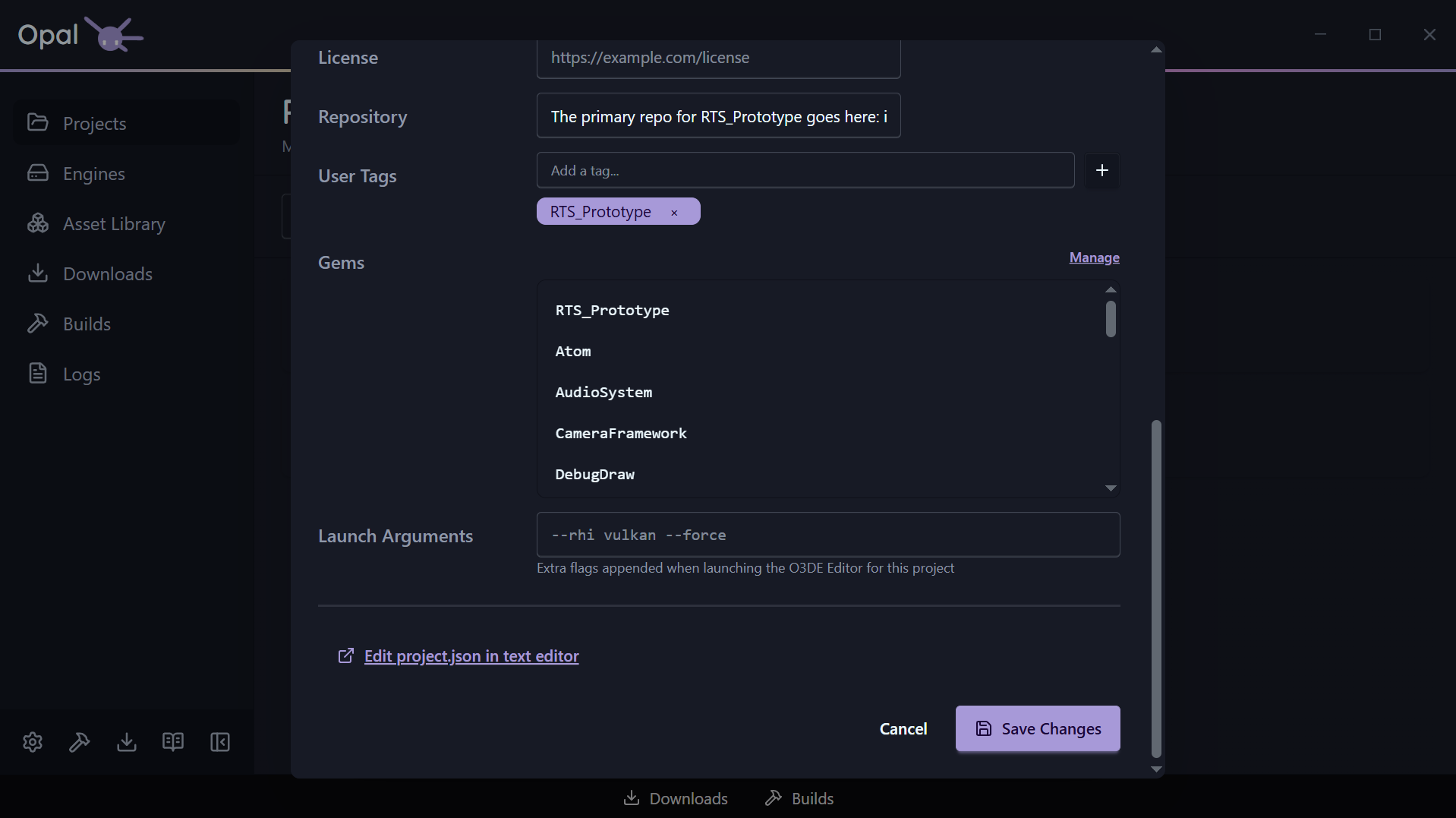
Extra command-line flags appended when this project’s O3DE Editor launches — for example:
Two things worth knowing:
- They apply to the Editor only. Tools and runtimes started from the project’s Run menu are launched without them.
- The field is validated as you type. Every flag has to be preceded by a space (
--rhi vulkan --force, not vulkan--rhi), and Save Changes stays disabled until the value parses.
Global vs per-project
CMake flags and build thread count are
global settings that apply to all projects — they live in
Build Tools settings, not here. Per-project settings are the engine pin, the build type, the build-tool override, the build targets, and the launch arguments.
See also
5 - Export
Package a project into a standalone, shippable release build.
Building a project gets you something you can run in the Editor. Exporting gets you something you can ship: a standalone release build with its launcher, its packaged assets, and nothing that depends on O3DE being installed on the machine that runs it.
OPAL drives O3DE’s own export-project pipeline, so the output is a normal O3DE export — OPAL supplies the configuration and the progress reporting.
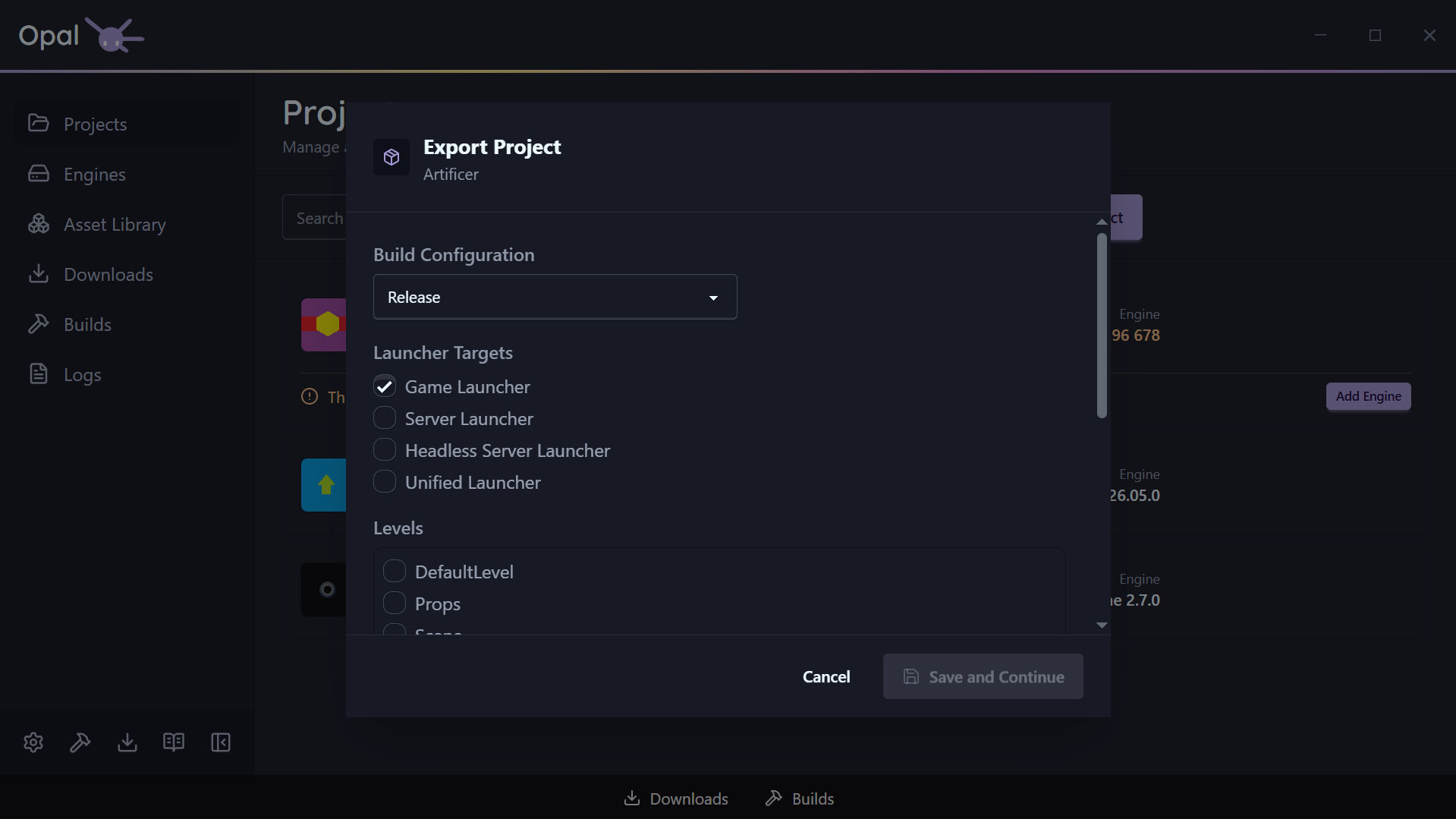
Start an export
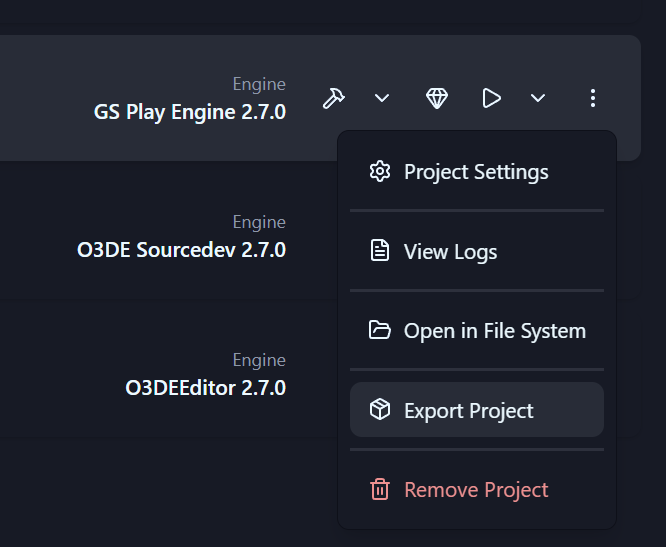
Open a project’s action menu and choose Export Project. The export dialog collects everything the pipeline needs.
Build configuration
Debug, Profile, or Release. This is the compiled code that ends up in the shipped build, and it defaults to Release.
Launcher targets
Which executables to produce. At least one is required:
| Target | Produces |
|---|
| Game Launcher | The standard client executable (selected by default) |
| Server Launcher | A dedicated server build |
| Headless Server Launcher | A server build with no rendering |
| Unified Launcher | A single executable that can act as client or server |
Levels
OPAL reads the levels out of your project’s Levels folder and lists them. Tick the ones to include — at least one is required, because the level selection is what seeds the asset bundle. Everything those levels reference is gathered automatically; you do not have to hand-build a seed list.
If the list comes up empty, the project has no levels where O3DE expects them.
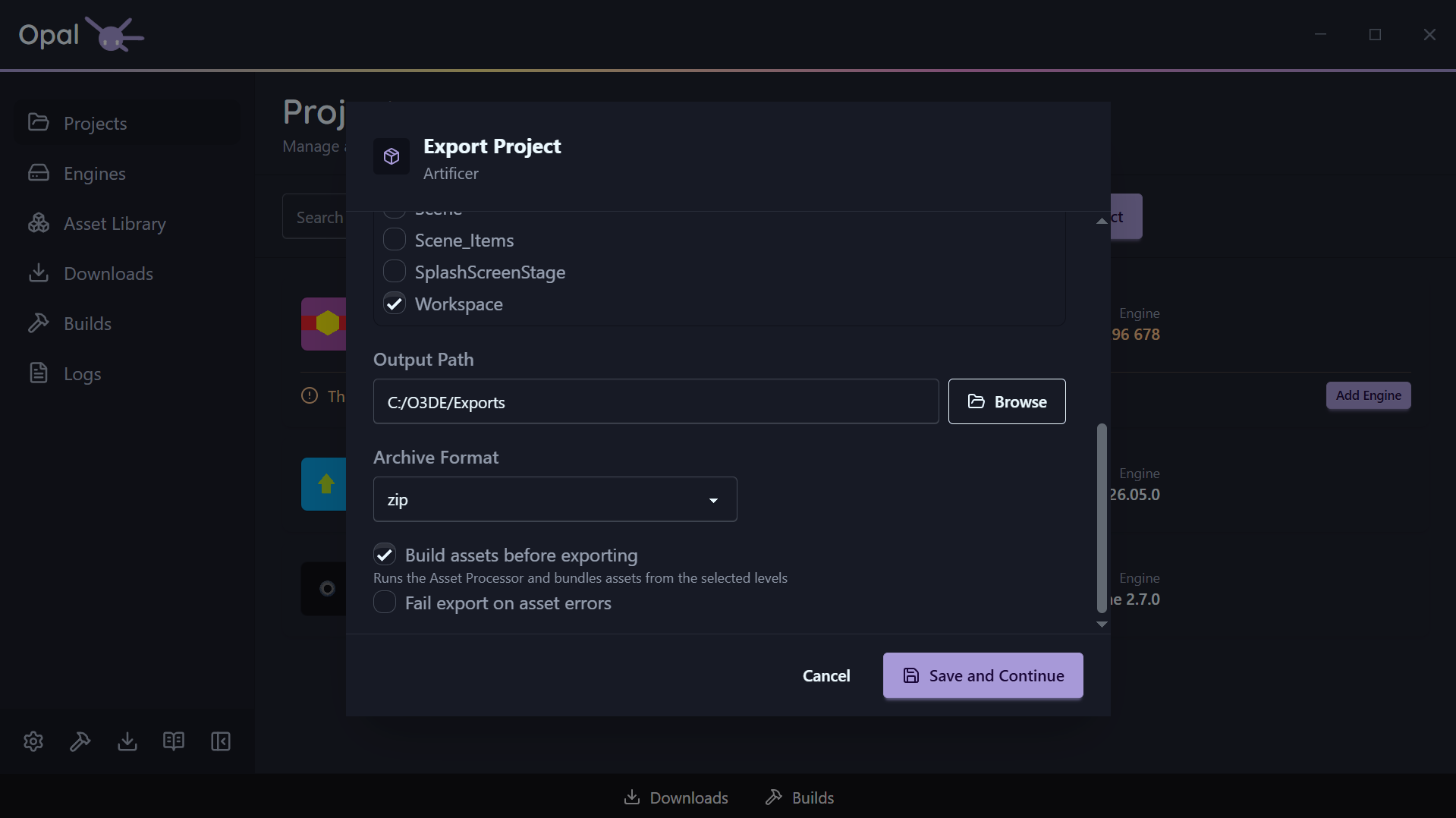
Assets
- Build assets before exporting (on by default) runs the Asset Processor and bundles the assets the selected levels pull in. Leave it on unless you have just processed assets yourself.
- Fail export on asset errors (off by default) turns asset processing errors into a hard stop instead of a warning. Turn it on for a release you intend to actually ship.
Package the output as zip, gzip, bz2, or xz, or choose None (folder only) to leave it as a plain directory. Defaults to zip.
Output path
Where the exported build is written. Choosing a folder triggers a disk space check.
The space estimate is an estimate
OPAL estimates the space required from your already-processed assets and existing build output, and doubles it when an archive format is selected — the export needs the unpacked folder and the archive on disk at the same time. A project that has never been built or asset-processed will be undercounted. If the destination doesn’t have room, OPAL saves your settings but will not start the export.Where the settings are stored
Save and Continue writes your choices into the project’s .command_settings file using O3DE’s own export-project-configure command. That file lives in the project root and is the standard O3DE export configuration — so your settings survive, can be read by anyone on the team, are versionable alongside the project, and remain usable from the command line without OPAL.
Nothing is stored in a private OPAL format. Re-opening the dialog on a project you have exported before will run against the same .command_settings the pipeline uses.
Exporting compiles launcher targets, so it needs the same toolchain a build does. If the required build tools are missing, OPAL still saves your export settings and tells you what is missing, with an Install Build Tools shortcut. The export starts once the toolchain is in place.
This also means export is unavailable in Script-Only mode, which deliberately hides source-compilation workflows.
Watching it run
An export joins the Builds queue and behaves like a build: same progress bar, same Pause / Resume, Cancel, reorder, and View Log controls. Builds and exports share one concurrency pool, because both drive the same CMake toolchain and would otherwise contend for it.
The queue item reports the stage it is in:
| Stage | What is happening |
|---|
| Building tools | Compiling the asset tooling the export needs |
| Building assets | Running the Asset Processor over the project |
| Bundling assets | Packing the level dependencies into .pak files |
| Compiling launcher | Building the launcher target(s) — reports real compile progress |
| Archiving | Packaging the output into the chosen archive format |
Export has one pause checkpoint, before the launcher compile begins. Once compiling starts, the item is no longer pausable — the same rule the Builds queue applies to a project build after its configure step.
Output is written to the Logs viewer as a project-export log for the duration, and OPAL raises a notification when the export finishes or fails.
See also