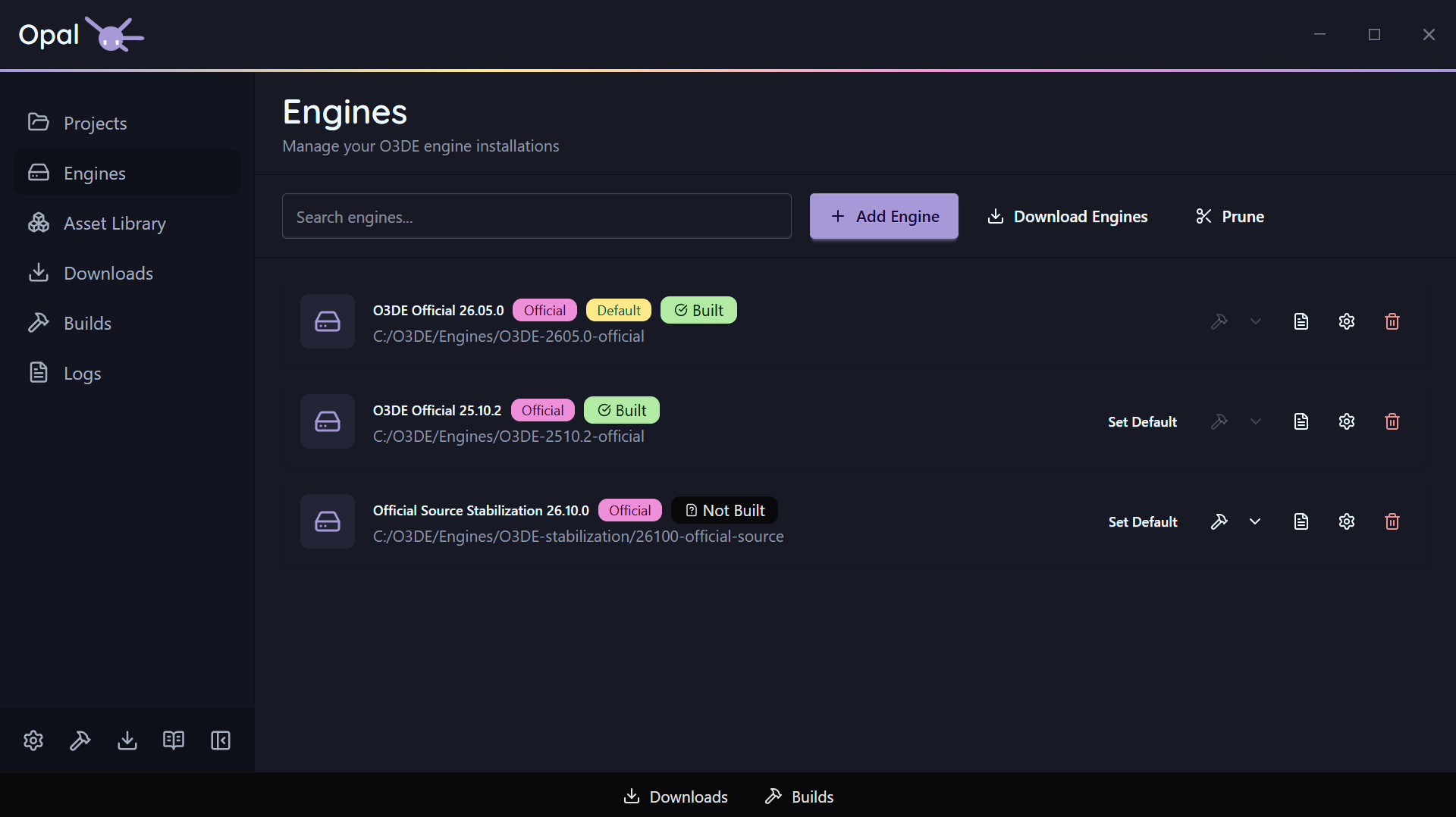
The Engines page lists every engine OPAL knows about, with search across name, version, and path. Each engine shows its name and display version, its path, and badges for Official and Default status, plus its build status where relevant.
Add (register) an existing engine
If you already have an O3DE engine on disk, click Add Engine and point OPAL at its folder. OPAL validates the engine.json; if the folder isn’t a valid engine, it shows an “Invalid Engine” error instead of registering it.
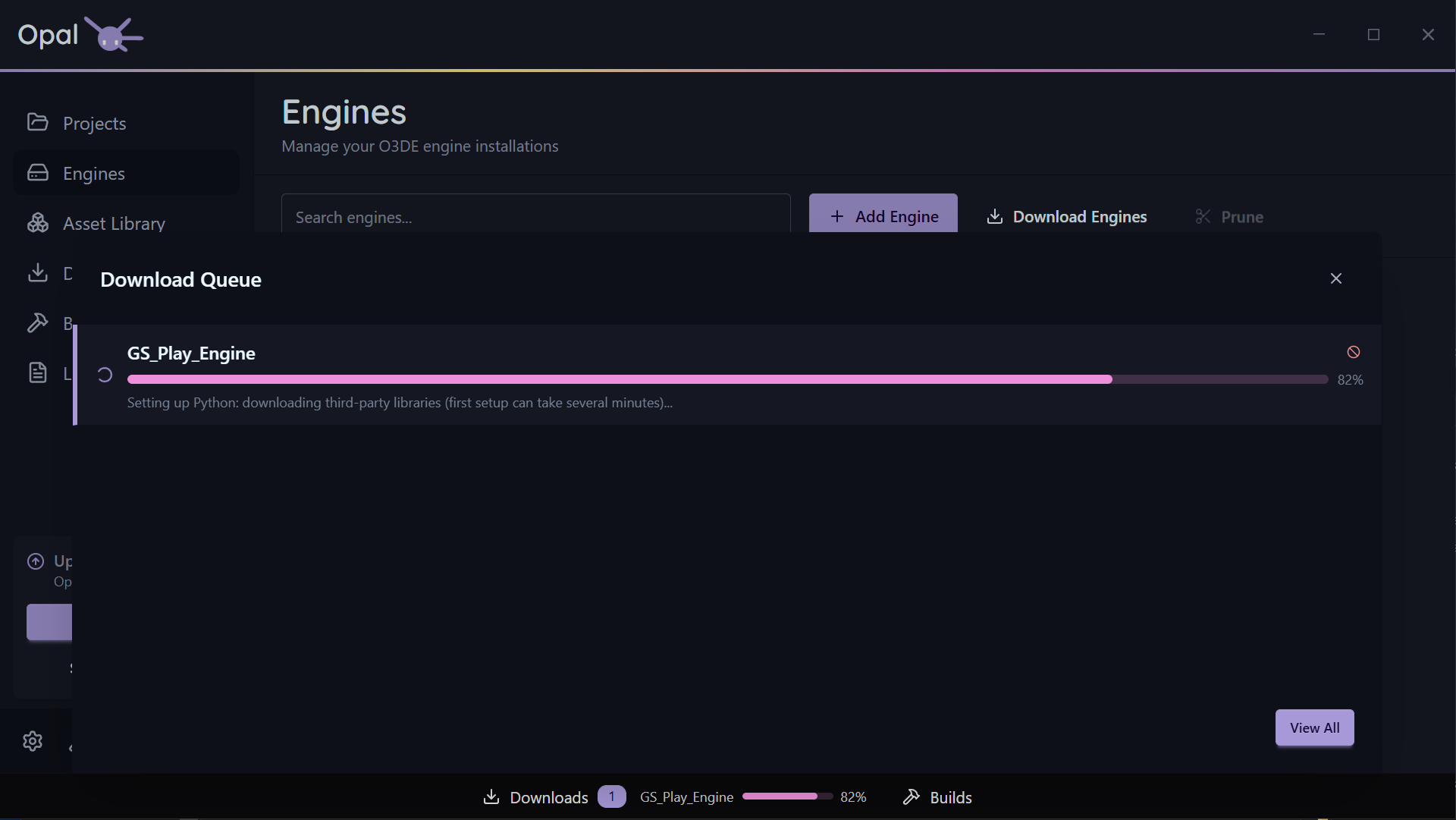
If your first ever Engine is an Added Engine, it may take some time to set up. You can view it’s progress in the Downloads Dock or Window.
Set the default engine
Your default engine is the one preselected when you create a new project. Click Set Default on any installed engine; the Default badge moves to it.
View an engine’s log
Each engine has a View Log action for inspecting its build or install output. See Logs for the full log viewer.
Engine settings
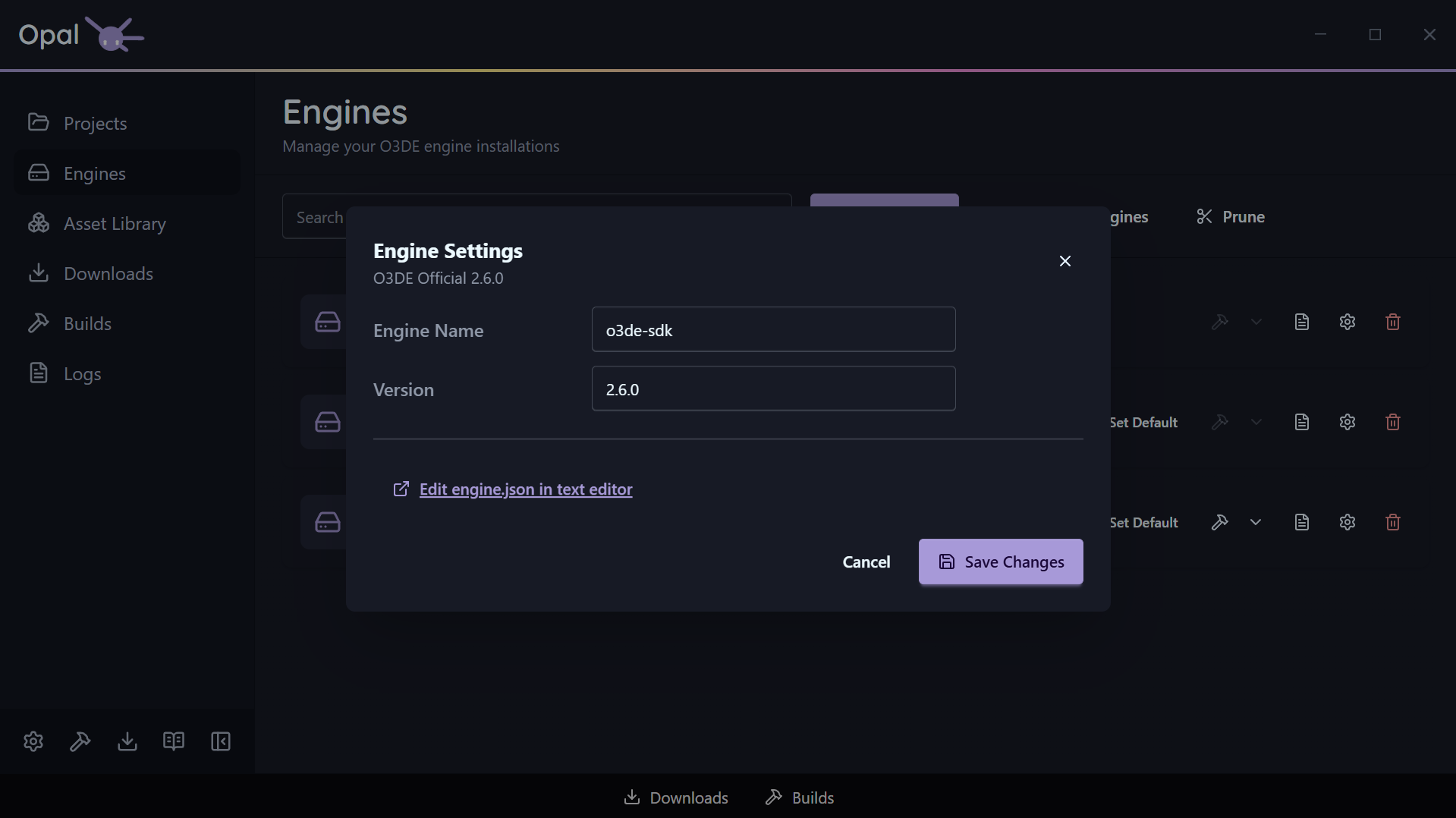
Open an engine’s Settings dialog to adjust its OPAL-tracked properties. Among these is an optional Editor-executable path override, useful for non-standard build layouts or pinning to a specific build configuration.
Invalid installations
If an engine’s files become invalid or go missing, OPAL surfaces an Invalid installation warning row with Remove and Redownload actions so you can recover in place.