Engines
Install O3DE from the launcher, manage installed engines, build from source, and prune what you don’t need.
The Engines page answers the question “which O3DE do I use?” — and lets you install any answer without leaving OPAL. Install as many versions as you want, keep them side by side, pin projects to specific ones, and remove the rest safely.
Each engine lives in its own directory and is registered independently in the O3DE manifest, so nothing you do to one engine disturbs another.
In this section
- Install engines — Download official releases, older versions, pre-releases, and source builds, or add your own download sources.
- Manage engines — Register an existing install, set the default, view logs, and handle invalid installations.
- Remove & prune — Remove a single engine, or prune every non-default engine at once — source engines go to the recycle bin; installer-based engines do not.
- Source builds — Build the engine from source, and how Script-Only mode changes what’s available.
1 - Install Engines
Download O3DE releases, pre-releases, and source builds from the launcher.
OPAL installs O3DE for you. The Engine Downloads page (reached from Engines → Download Engines) reads O3DE’s release metadata and presents every available build so you never have to browse the O3DE website for the right zip.
The Engine Downloads page
A two-pane layout: the release list on the left, release details on the right.
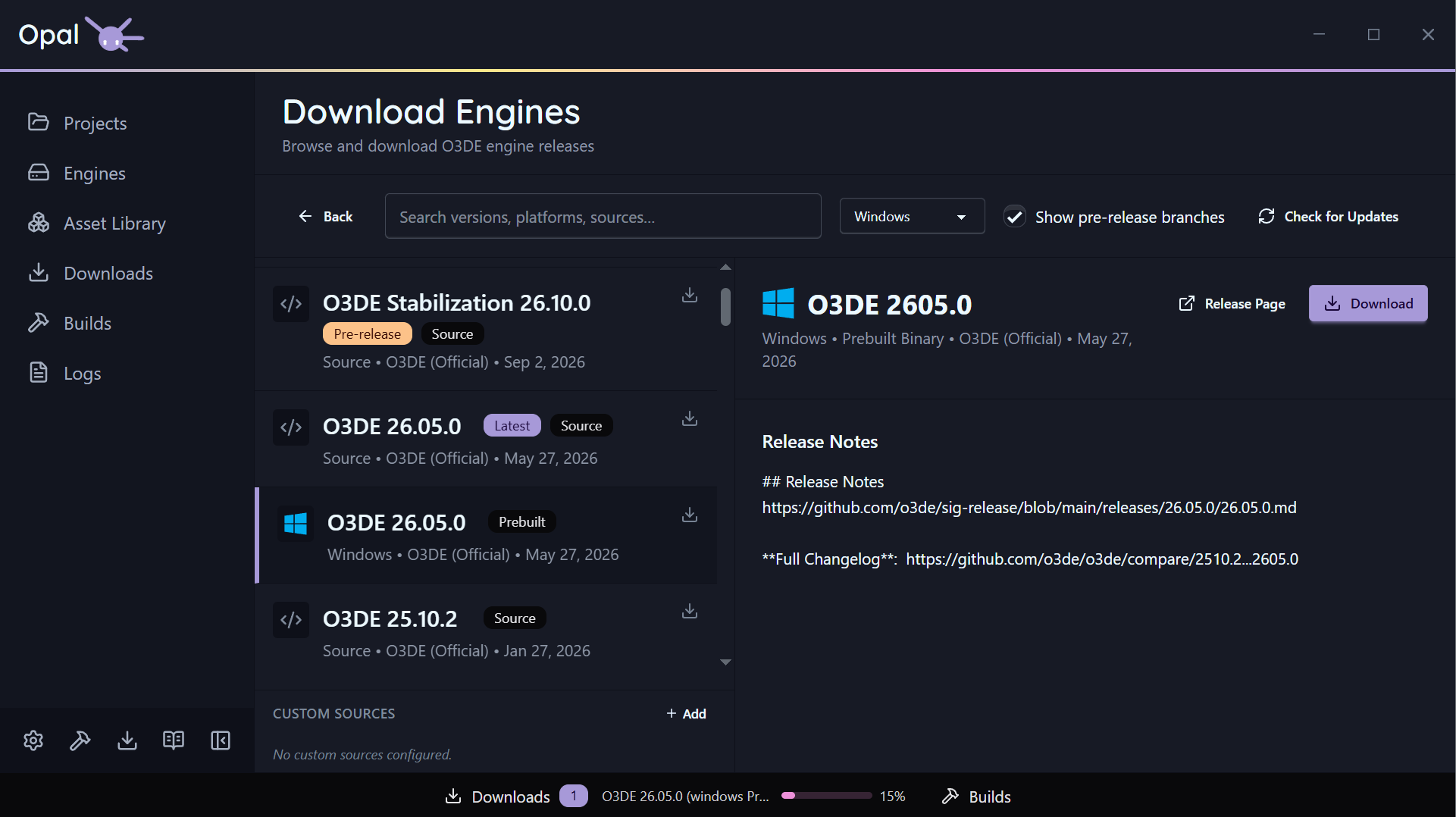
- Platform filter — All, Windows, Linux, macOS, plus Source. (The Source option is hidden when Script-Only mode is on.)
- Latest badge — marks the newest release for each platform.
- Search — filter the list by version, source, or platform.
- Installed / downloading indicators — each row shows whether that release is already installed or currently downloading.
Select a release to see its details, then start the install. Official-release downloads run in the Downloads queue; source builds also run through the Builds queue.
Older versions and pre-releases
- Older releases are simply lower down the list — pick any prior version.
- Pre-releases are hidden by default. Tick Show pre-releases to surface
development and stabilization/* branch builds.
Custom engine sources
Beyond the official releases, you can add your own download hosts — for example a studio’s internal engine builds.
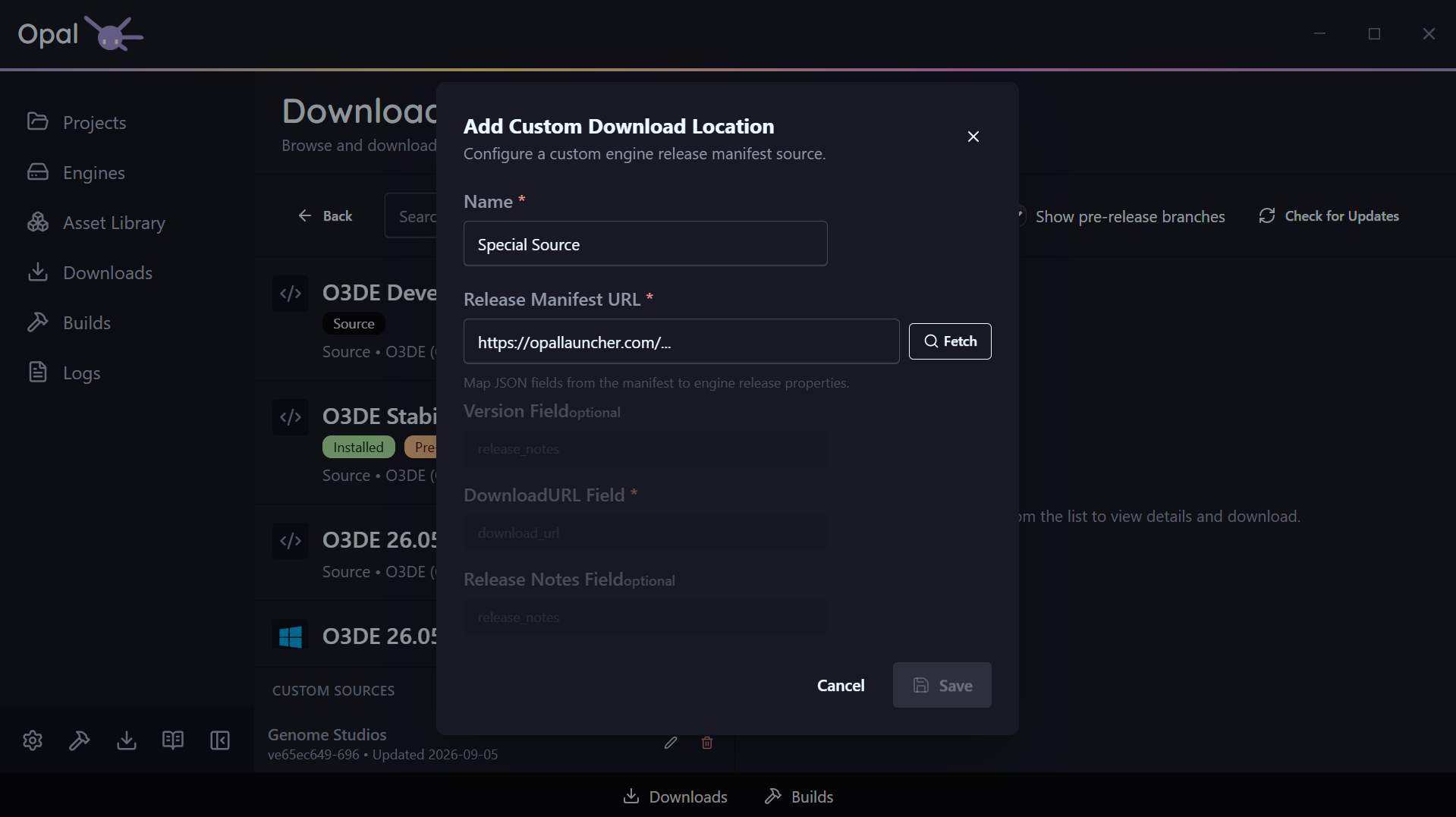
Open Custom Engine Sources, add a host, and map its JSON release manifest:
- Name — how it appears in the UI.
- Manifest URL — the JSON release manifest.
- Field mappings — which JSON keys hold the version, download URL, and release notes.
Each custom host shows its latest version and last-updated time, and a Check for Updates action refreshes them on demand. Custom-source releases appear in the list alongside official ones.
See also
2 - Manage Engines
Register existing installs, set the default engine, view logs, and handle invalid installations.
The Engines page lists every engine OPAL knows about, with search across name, version, and path. Each engine shows its name and display version, its path, and badges for Official and Default status, plus its build status where relevant.
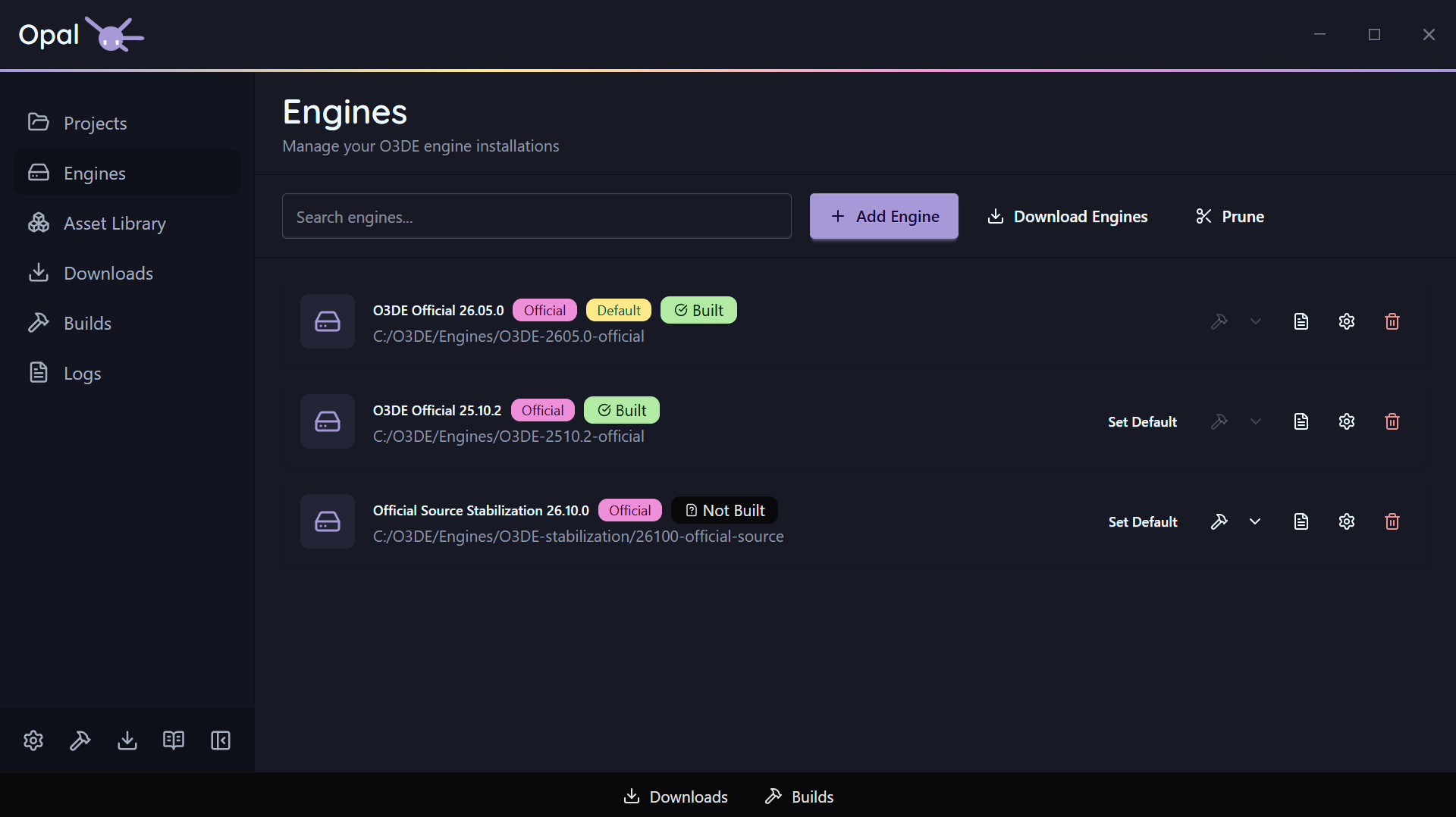
Add (register) an existing engine
If you already have an O3DE engine on disk, click Add Engine and point OPAL at its folder. OPAL validates the engine.json; if the folder isn’t a valid engine, it shows an “Invalid Engine” error instead of registering it.
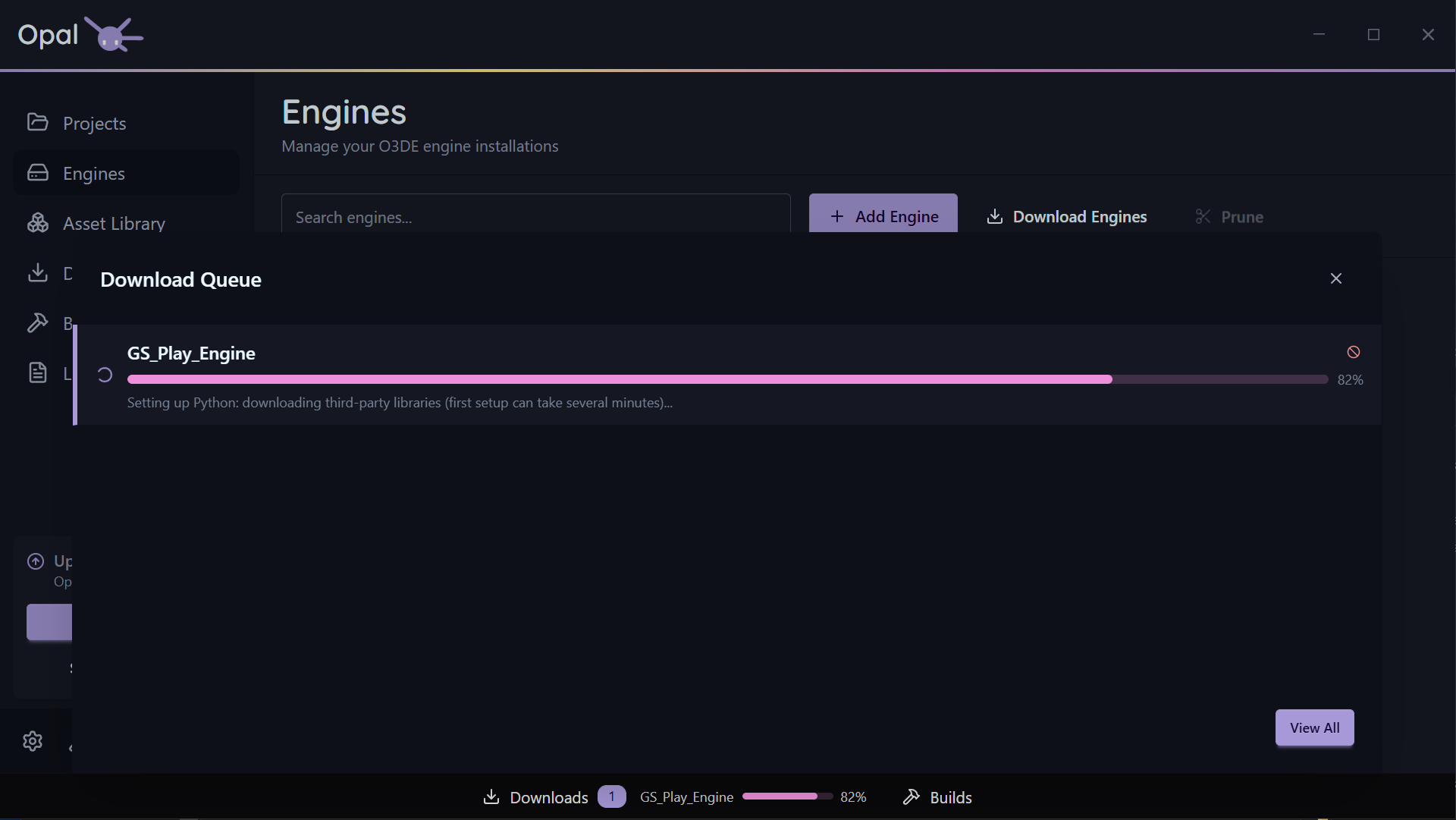
If your first ever Engine is an Added Engine, it may take some time to set up.
You can view it’s progress in the Downloads Dock or Window.
Set the default engine
Your default engine is the one preselected when you create a new project. Click Set Default on any installed engine; the Default badge moves to it.
View an engine’s log
Each engine has a View Log action for inspecting its build or install output. See Logs for the full log viewer.
Engine settings
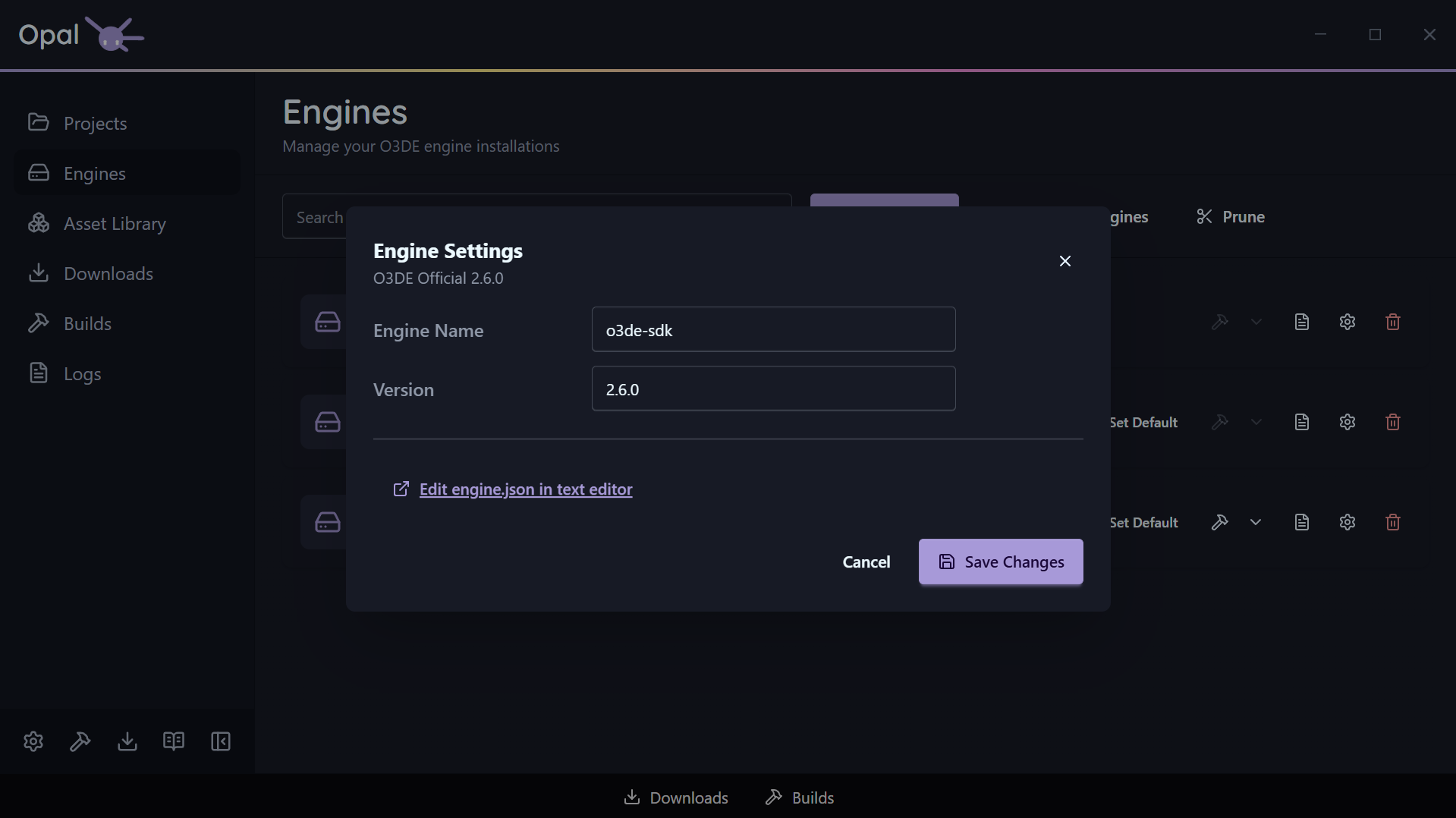
Open an engine’s Settings dialog to adjust its OPAL-tracked properties. Among these is an optional Editor-executable path override, useful for non-standard build layouts or pinning to a specific build configuration.
Invalid installations
If an engine’s files become invalid or go missing, OPAL surfaces an Invalid installation warning row with Remove and Redownload actions so you can recover in place.
See also
3 - Remove & Prune
Remove a single engine, or prune the engines nothing is using — with per-engine toggles.
Engines are large. When you no longer need one, OPAL removes it and cleans it out of the O3DE manifest. Source engines go to the operating system’s recycle bin / trash, not a permanent delete. Installer-based engines do not: they are uninstalled and are not recoverable from the recycle bin.
Remove a single engine
Use the Remove action on an engine (available from the engine list and from an invalid-installation warning row). OPAL confirms, unregisters it from the manifest, and removes the engine:
- Source engines are moved to the OS recycle bin / trash, so a mistake is recoverable.
- Installer-based engines are uninstalled and are not sent to the recycle bin. Removing one is permanent, so reinstall it if you need it back.
Prune unused engines
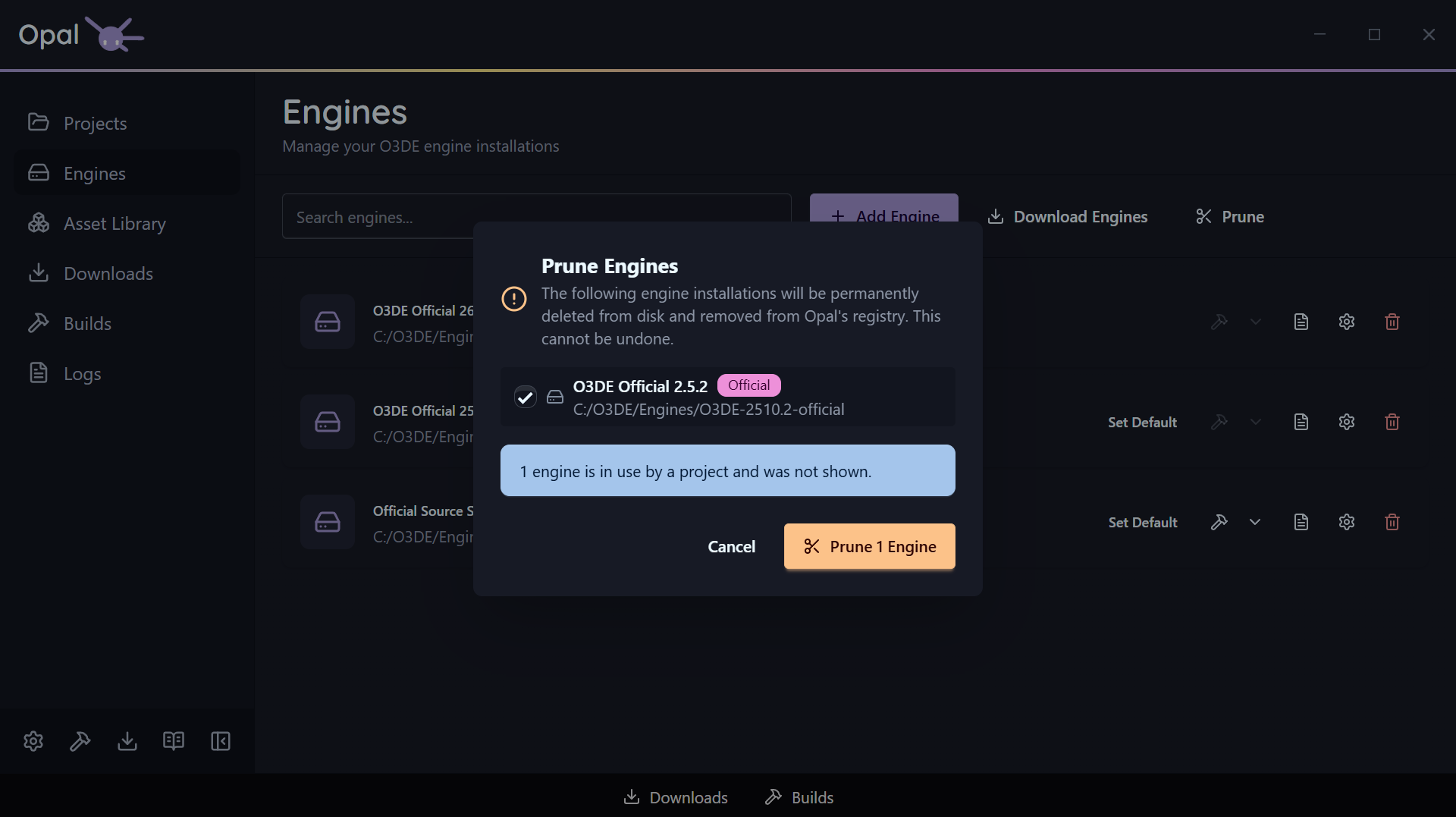
Prune, on the Engines page, reclaims space in one pass — and it only ever offers you engines that nothing is using.
Two exclusions are applied before you see the list:
- Your default engine is never listed. It is kept no matter what.
- Any engine a registered project resolves to is held back, and OPAL tells you how many were excluded for that reason. Pruning can’t take an engine out from under a project you still have.
If nothing is left after those exclusions, OPAL says so rather than presenting an empty confirmation.
Fine-tune the selection
Everything that survives the filter is listed with a checkbox, and all of them start ticked. Untick anything you want to keep — an engine you’re about to pin a new project to, a pre-release you’re still testing against — and the confirm button updates to match, reading Prune 2 Engines for two, and so on. It stays disabled while nothing is selected, so you can’t fire an empty prune.
Each row shows the engine’s name, version, path, and whether it is an official build, so you can tell near-identical installs apart before you commit.
What actually happens
For every engine you confirmed, OPAL removes its entry from the O3DE manifest, then removes the engine the same way as a single removal: source engines are moved to the OS recycle bin / trash (recoverable), while installer-based engines are uninstalled and are not recoverable from the recycle bin.
What happens to pinned projects
If a project was pinned to an engine you remove, the project stays in your list but flags a missing-engine state. See Project status & health for how to reassign or reinstall.
Because Prune skips in-use engines, this only comes up after a single Remove — or if an engine folder is deleted outside OPAL.
See also
4 - Source Builds
Build the O3DE engine from source, and how Script-Only mode changes what’s available.
OPAL can install O3DE either as a prebuilt binary or as a source build. Prebuilt engines are faster to get running; source builds let you patch the engine yourself. OPAL tracks which is which and only offers build actions where they make sense.
Installing a source build
On the Engine Downloads page, choose the Source platform filter (or a pre-release branch).
A source engine is usable without building it, which causes the entire source code to build alongside your project. A necessary process for source code editing/development work, but will cause longer-than-normal build times for your project.
To build it once, and be able to use it regularly thereafter, you can proceed to building your engine directly.
Building and rebuilding
Source engines expose a Build action on the Engines page. Prebuilt engines don’t — the action is disabled with a “Cannot build pre-built engine” note, since there’s nothing to compile.
OPAL runs the engine build through the Builds queue, so it’s pausable, resumable, and crash-safe like any other build.
An unbuilt source engine is clearly marked so you know it still needs a build before projects can use it prebuilt.
Script-Only mode
If you’re not compiling C++, turn on Script-Only mode (in the onboarding wizard or Settings). While it’s on, OPAL:
- Hides the Source option in Engine Downloads.
- Hides build actions on source engines.
- Notes that unbuilt source engines are unavailable in Script-Only mode.
This keeps the app focused on prebuilt, script-based work.
See also