OPAL gives easy access to a projects gem configuration, reached from the project’s Gems quick-action button.
Enable and disable gems
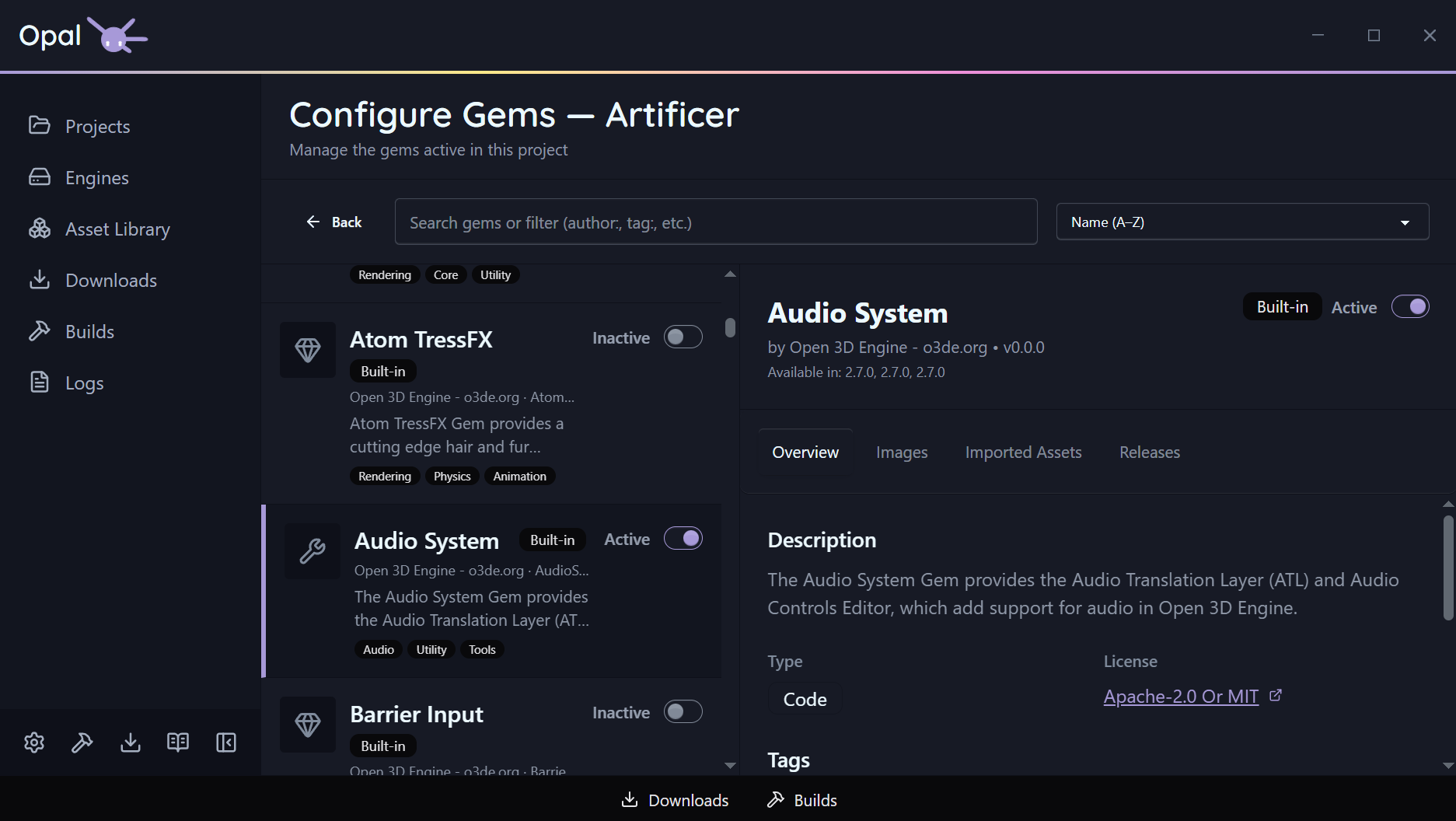
The project gem view uses the same list-and-inspector layout as the Asset Library, but scoped to the gems available for that project’s engine plus your repository gems. Toggle a gem active or inactive for the project, and OPAL keeps the project’s gem set in sync — updating project.json’s gem list and the project’s CMake gem list together.
Required dependencies
Gems that are pulled in as dependencies of an active gem are marked with a Required dependency badge and can’t be switched off directly — OPAL won’t let you disable something another active gem needs.
Sorting
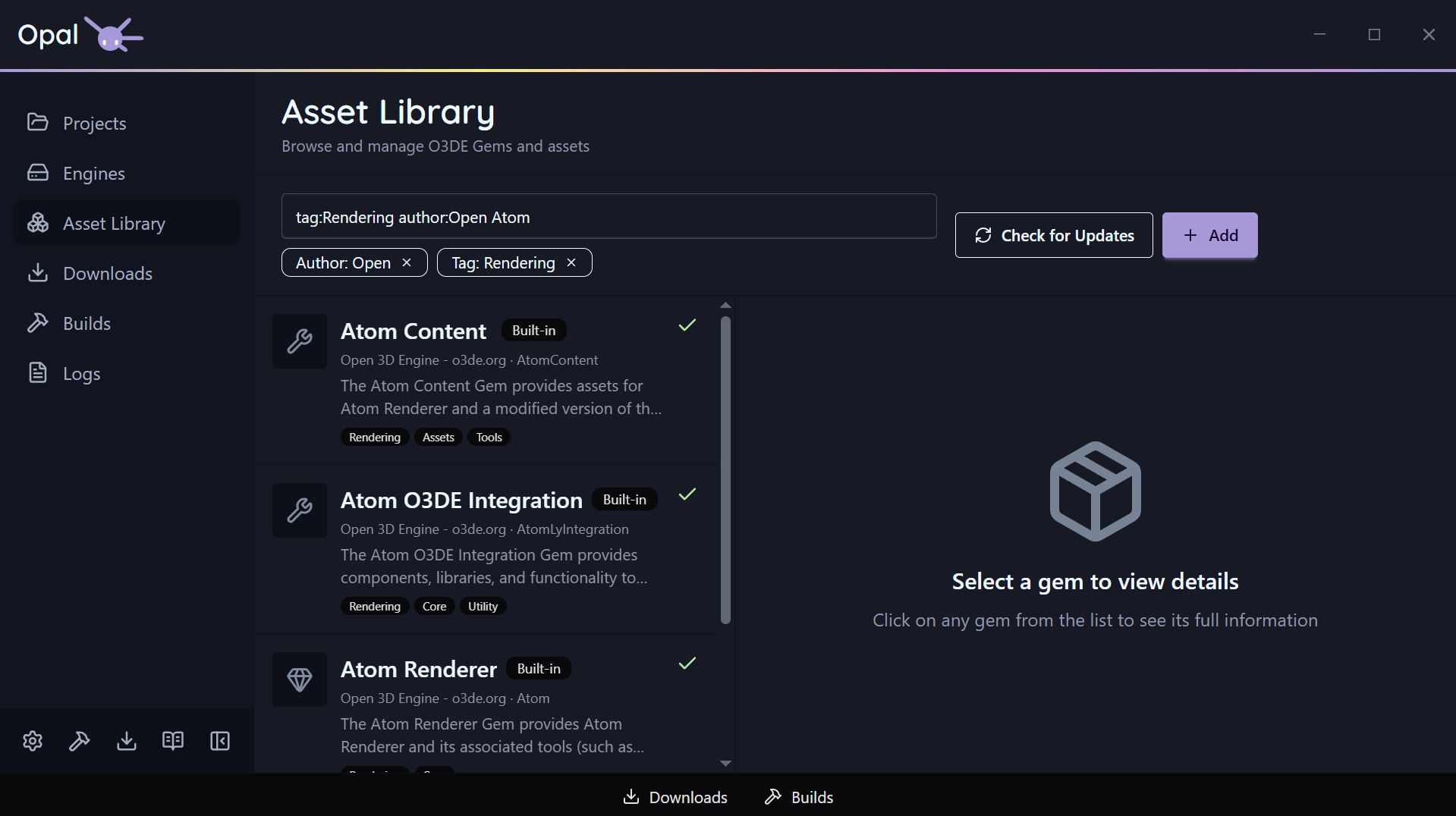
The search box does a live text match across gem name, display name, summary, and origin. On top of free text, you can use filter prefixes — combine as many as you like:
| Prefix | Matches |
|---|---|
author:<name> | Gems by a given author |
tag:<value> | Gems with a tag (repeatable; tags OR together) |
gemType:<Asset|Code|Tool> | Gems of a given type |
compatibleEngines:<engine>[,<engine>...] | Gems compatible with the given engine(s) |
downloaded:<true|false> | Downloaded (or not) gems |
hasUpdate:<true|false> | Gems with an available update |
updatedBefore:<date> / updatedAfter:<date> | Gems by last-updated date |
filter:project | Only the gems this project references (the This project’s gems scope) |
Downloading a gem’s source
Per gem, you can download the gem or its source — OPAL uses git clone or an archive download as appropriate (see Repositories & sources for how credentials and the git/archive choice work).
Missing gems
OPAL checks every gem a project references against the gems it knows about for the project’s engine. That includes gems listed explicitly in the project and gems pulled in only as dependencies of other gems, however deeply nested. Any reference that can’t be resolved is flagged.
Configure will fail until the missing gems are provided, so OPAL warns you up front. The project’s card shows a missing gems banner with a shortcut straight into the gem configuration page, already filtered to that project’s gems.
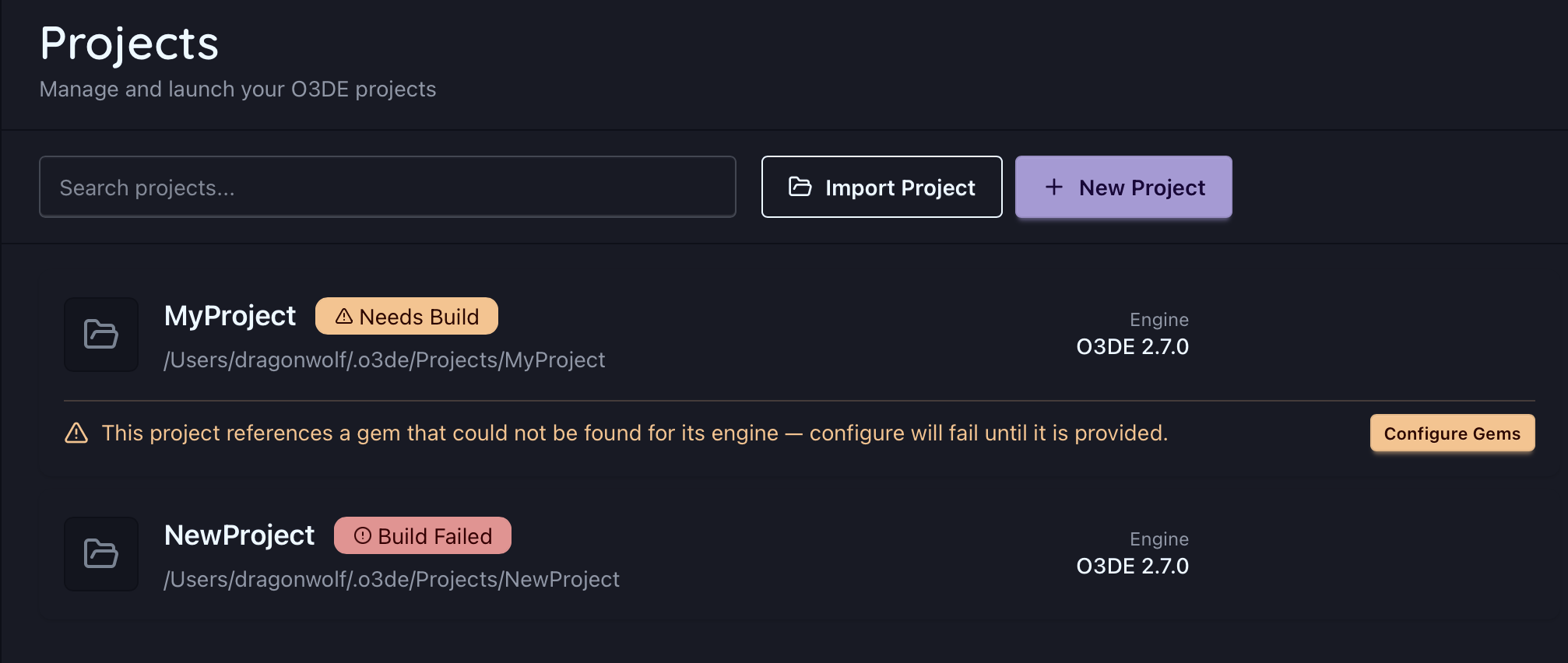
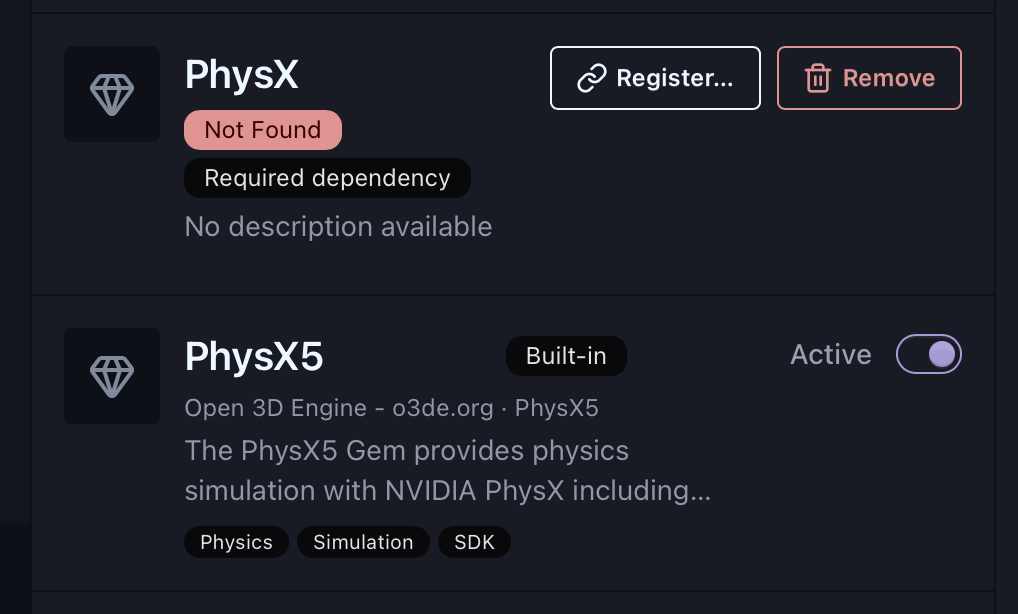
On the Configure Gems page, each unresolved gem appears as a placeholder row with a Not Found badge. Gems that are only there as another gem’s dependency also carry the Required dependency indicator. Use the This project’s gems scope (filter:project) to see just the gems the project references.
For each missing gem you can:
- Register it from a local folder. If you already have the gem on disk, point OPAL at its folder and it is added to your gem library.
- Download it from a known repository. If a configured repository provides the gem, download it from there. See Repositories & sources.
- Remove it from the project, if the project doesn’t need it.
Once every reference resolves, the banner clears and Configure can proceed.
Engine not resolved
If the project’s engine can’t be resolved, the page shows an engine-missing banner — resolve the engine first (see status & health) and the gem configuration becomes available.