The Asset Library is OPAL’s gem browser: a gem list on the left and the Gem Inspector on the right. It gathers gems from every source you’ve configured — repositories, local gems, and the gems bundled with your engines — and lets you search and filter across all of them.
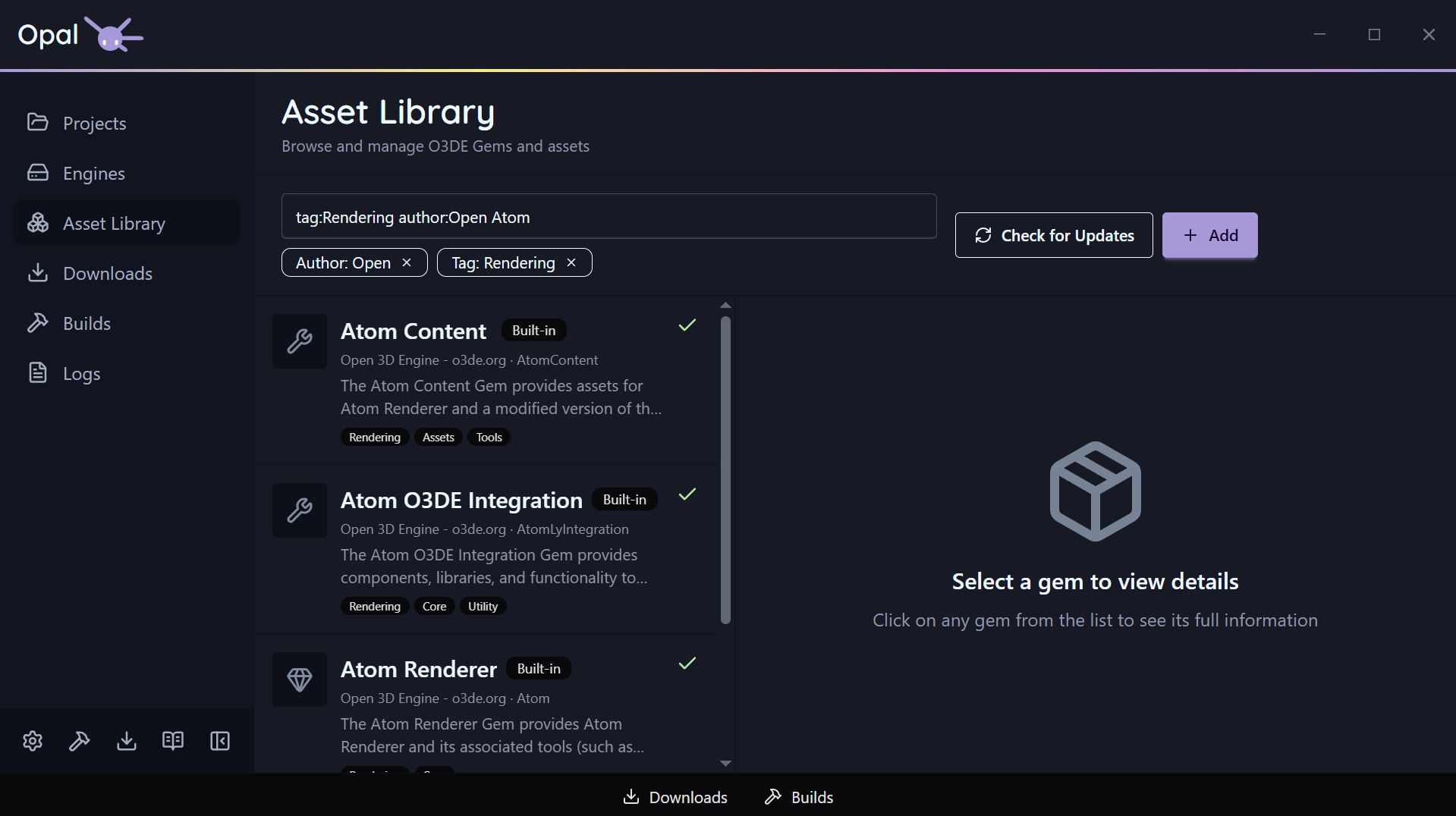
Search & filter
The search box does a live text match across gem name, display name, summary, and origin. On top of free text, you can use filter prefixes — combine as many as you like:
| Prefix | Matches |
|---|---|
author:<name> | Gems by a given author |
tag:<value> | Gems with a tag (repeatable; tags OR together) |
gemType:<Asset|Code|Tool> | Gems of a given type |
compatibleEngines:<engine>[,<engine>...] | Gems compatible with the given engine(s) |
downloaded:<true|false> | Downloaded (or not) gems |
hasUpdate:<true|false> | Gems with an available update |
updatedBefore:<date> / updatedAfter:<date> | Gems by last-updated date |
Free text and prefixes combine — for example author:Acme tag:audio hasUpdate:true.
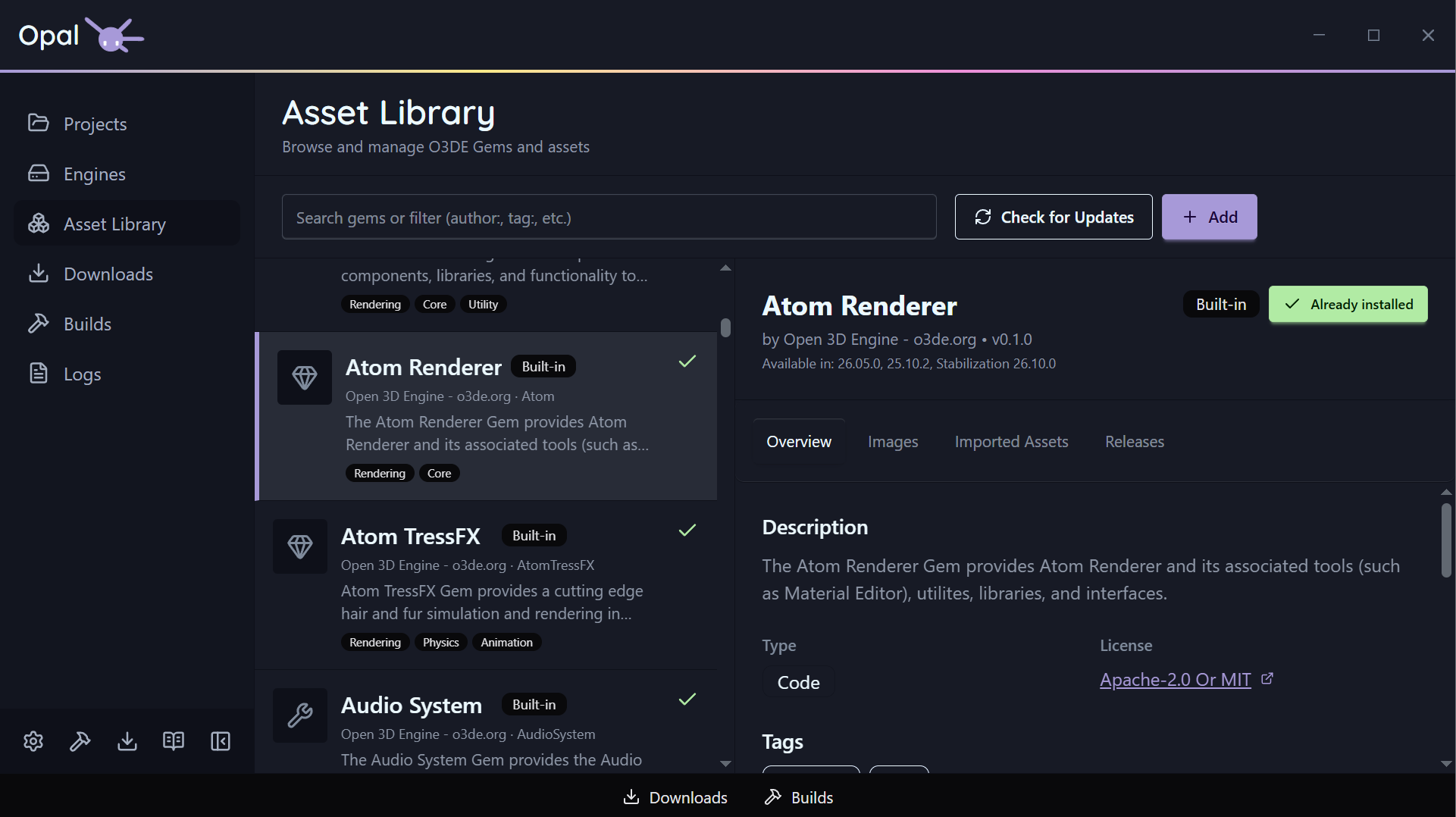
The Gem Inspector
Select a gem to open the inspector, which has five tabs:
- Overview — name, author, summary, type, license, requirements, compatible engines, dependencies.
- Images — screenshots and media the gem provides.
- Imported Assets — the assets the gem brings in.
- Releases — version history with release notes fetched automatically from the gem’s host (GitHub, GitLab, or Bitbucket).
- Instances — where the gem is present/used.
For local or user-managed gems, the inspector also supports an edit mode for fields like display name, summary, type, license, docs URL, requirements, compatible engines, and dependencies.
Kinds of gems
OPAL distinguishes local gems, engine-bundled (built-in) gems, and repository gems, so you always know where a gem came from.